

As an Amazon Associate I earn from qualifying purchases.
Quick answer: our top pick is Dell 27 Plus S2725QC (27 inches · 4K · USB-C 65 W).
Best monitor for iPad Air M4? The simplest choice is 27 inches, 4K and USB-C
The simplest choice is a 27-inch monitor with 4K resolution and a USB-C input. One cable carries the picture from the iPad, and if the monitor supplies power over USB-C, the tablet charges at the same time.
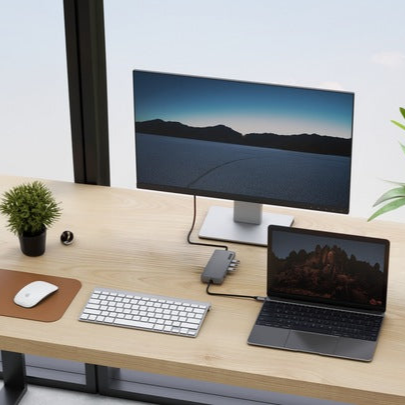
This setup looks clean on a desk: the iPad sits next to the monitor, one cable runs to the monitor, and you work on a large screen. You don't have to buy adapters or look for a power outlet for a charger.
If text sharpness isn't a priority for you, a 1440p monitor is enough too. If you want a top-tier screen, 5K is an option. Details in the sections below.

Does the iPad Air M4 support an external monitor
Yes. According to Apple's technical specifications, the USB-C port in the iPad Air M4 (11-inch and 13-inch versions) supports charging, DisplayPort and USB 3 up to 10 Gb/s. iPadOS displays the picture on the external monitor.
There are two limitations. The iPad supports one external monitor, and it runs at a resolution of up to 6K at 60 Hz. You can't connect two monitors to it at once.
4K and 5K resolutions fit within this limit without any problem.
Fun fact: The iPad Air M4 can handle a monitor of up to 6K, which is more than the 5K of the Apple Studio Display.
Below we have gathered monitors selected by resolution, USB-C input and use, from desktop models to portable ones.

Monitors for the iPad Air M4 we recommend
1. Dell 27 Plus S2725QC
27 inches · 4K · USB-C 65 W
A 4K monitor with a USB-C input. One cable carries the picture from your iPad and charges it at up to 65 W, faster than the 20 W adapter from the box. It refreshes at 120 Hz, but the iPad Air will send it 60 Hz at most.
2. LG UltraFine 27UP850K
27 inches · 4K · 95% DCI-P3 · USB-C approx. 90 W
A 4K monitor with 95% DCI-P3 according to LG, good for photos and graphics from your iPad. USB-C carries the picture and charges the tablet, and next to it are two HDMI ports and a DisplayPort for other devices.

3. Dell 27 Plus S2725DC (QHD)
27 inches · 1440p · USB-C 65 W
The cheaper Dell version with 1440p resolution, also with USB-C and 65 W charging. Text is less sharp than on 4K, but it is enough for a browser, email and documents.

4. Apple Studio Display (2026)
27 inches · 5K · 600 nits · camera and speakers
An Apple monitor: 27 inches, 5K, 600 nits, a 12 MP camera and six speakers in one housing. The 5K resolution fits within the iPad Air's 6K limit. The most expensive pick, for people who want an Apple display for both iPad and Mac.

5. ARZOPA Z1FC 16.1"
16.1 inches · 1080p · USB-C · portable
A portable monitor for the bag with your iPad. Picture and power run over a single USB-C cable, so on the road you get a second screen without a power adapter.
USB-C or an HDMI adapter
A monitor with a USB-C input is the most convenient option. You connect your iPad with a single cable, and the image goes straight to the screen with no intermediaries.
If your monitor has only HDMI or DisplayPort, you need a USB-C to HDMI or DisplayPort adapter. It works without any problems, but it adds a second item to your setup, and the monitor will not charge the tablet in this case.
Charging from the monitor is a big convenience during longer work sessions. A monitor with USB-C power keeps your iPad plugged in, so the battery does not drain while you sit over a spreadsheet or document all day.
The iPad Air box includes a 20 W power adapter and a 1 m USB-C cable. The cable from the box is often enough for the first connection, but a longer one comes in handy on a desk if the monitor stands farther away.
Fun fact: the power adapter in the iPad Air box is 20 W, and a monitor with 65 W USB-C will charge the tablet faster than it does.
For working at a monitor, you will also need a keyboard and a mouse or trackpad. The iPad Air M4 has a Smart Connector for the Magic Keyboard, and you can connect a mouse via Bluetooth. Separate articles cover the keyboard and stylus for the iPad Air M4.
4K, 5K or 1440p, and what about refresh rates above 60 Hz
For everyday use, 4K on 27 inches works best. Text is sharp, and the price of the hardware usually does not climb the way it does with 5K. The Dell 27 Plus S2725QC and LG UltraFine 27UP850K belong to this category.
The Dell has USB-C 65 W, and the LG about 90 W. The LG also offers two HDMI inputs and DisplayPort, so you can connect a laptop or console to the same monitor. According to LG, it covers 95% of DCI-P3, which is useful for photos and graphics.
The Dell 27 Plus S2725DC has 1440p resolution, 144 Hz and USB-C 65 W. Text is less sharp than on 4K, but for a browser, email and documents it is enough.
The Apple Studio Display is a proposition for those who want a 5K screen with Thunderbolt 5, a 12 MP camera and six speakers in a single housing. It fits within the iPad Air's 6K limit, but it is a high-end purchase.
120 or 144 Hz monitor
The 60 Hz limit means that a 120 or 144 Hz monitor will work, but the iPad will send it 60 Hz at most. So do not overpay for a refresh rate you will not use. If you already have such a monitor, or a model with a higher refresh rate happens to be the best in other respects, you can connect it with confidence.
Portable monitor for travel
When traveling, a 16-inch portable monitor powered via USB-C works well. Image and power travel over a single cable, so a second screen does not need a power adapter.
The ARZOPA 16.1 inch has 2.5K resolution and USB-C. In the US, the ARZOPA Z1FC 16.1 inch in 1080p is available. It is useful for working with two apps at once, for example a document next to your notes.
Most common questions about a monitor for the iPad Air M4
Which monitor for the iPad Air M4?
Ideally 27 inches, 4K and with a USB-C input. One cable carries the image and charges the iPad. If your budget is limited, 1440p with USB-C is enough.
Does the iPad Air M4 support an external monitor?
Yes, one external monitor at a resolution of up to 6K at 60 Hz. You connect it through a USB-C port with DisplayPort support. iPadOS displays the image on it.
Does the iPad Air M4 support a 120 Hz monitor?
A 120 or 144 Hz monitor will work, but the iPad will send it 60 Hz at most. So the higher refresh rate will not be used.
How do I connect the iPad Air M4 to a monitor?
If the monitor has USB-C, a single USB-C cable is enough. If it has only HDMI or DisplayPort, you need a USB-C to HDMI or DisplayPort adapter.
Does a monitor charge the iPad Air via USB-C?
Yes, if the monitor has USB-C power delivery. Then the same cable carries the image and charges the tablet. Monitors with USB-C 65 W, like the Dell 27 Plus S2725QC, will charge it faster than the 20 W adapter from the box.
See also
- Which charger for Apple iPad Air M4 - will your phone charger do?
- Which keyboard for iPad Air M4 - the M2 and M3 one fits too
- Which Apple Pencil for iPad Air M4 - Pro or USB-C
- Best monitor for MacBook Neo - one 4K 60 Hz screen over USB-C
- Best monitor for Mac Studio M5 - 5K or 6K and how many displays
Sources
- Apple: iPad Air 11-inch (M4) tech specs - manufacturer page (support.apple.com)
- Apple: iPad Air 13-inch (M4) tech specs - manufacturer page (support.apple.com)
- Apple: iPad Air technical specifications - manufacturer page (apple.com)
- Tom's Guide: Apple iPad Air M4 review - industry article (tomsguide.com)
- TechRadar: iPad Air M4 review - industry article (techradar.com)
- Hoxton Macs: iPad keyboard compatibility guide - industry article (hoxtonmacs.co.uk)

Leave a comment
This site is protected by hCaptcha and the hCaptcha Privacy Policy and Terms of Service apply.