





As an Amazon Associate I earn from qualifying purchases.
Quick answer: our top pick is SanDisk 1TB Portable SSD (USB-C · up to 1000 MB/s · 1 TB).
Best SSD for iPad Air M4? A 10 Gb/s portable SSD and USB-C flash drives
10 Gb/s is the most the USB-C port on the iPad Air M4 can deliver, so a faster drive won't speed anything up. For big files like videos, camera photos and backups, get a portable SSD with USB 3.2 Gen 2. For documents and photos, a flash drive with a USB-C plug is enough.
Both options work with no tricks. Plug it in, open the Files app and you have access to the contents.
We cover keyboards and monitors for the iPad Air M4 in separate articles, so here we stick to storage.
USB-C port and the Files app on the iPad Air M4
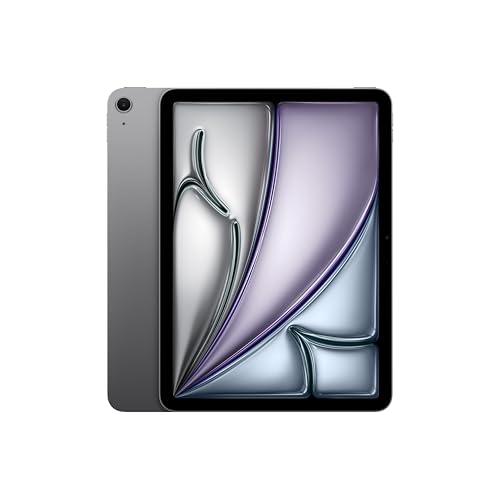
The USB-C port on the iPad Air M4 (11-inch and 13-inch) isn't just for charging. Apple says it also supports DisplayPort and USB 3 at up to 10 Gb/s.
You can't expand the iPad's storage, and the iPad Air has no card reader. That makes an external drive or flash drive the only way to get extra space.
You open a drive or flash drive connected to USB-C in the Files app. It shows up there like any other location, so copying and moving files works the same as in the tablet's own storage.
Before you buy anything, check three things on the drive or flash drive itself, or in the seller's listing:
- Standard: for a drive, look for USB 3.2 Gen 2 or 10 Gb/s. A slower standard will work, but videos will take longer to copy.
- Plug: for the iPad you need USB-C. A flash drive with a USB-A plug on the other end is handy for an older computer.
- Format: a drive meant to work with both an iPad and a Windows PC should use the exFAT file system. The details are in the last section.
For the boxes below, we picked popular portable SSDs and flash drives with a USB-C plug that fit the port described above. Availability varies by country, so also check what's included in the listing before you buy.
Our favorite drives and flash drives for iPad Air M4
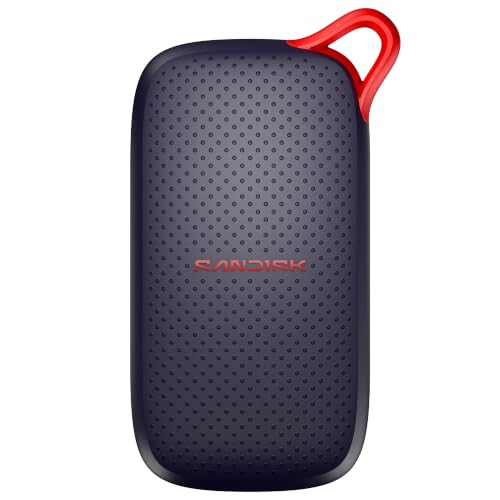
1. SanDisk 1TB Portable SSD
USB-C · up to 1000 MB/s · 1 TB
The current model of the SanDisk portable drive. The manufacturer lists up to 1000 MB/s read speed. A simple drive for photos, movies and file backups from your tablet.

2. SanDisk Extreme Portable SSD
On saleUSB-C · 10 Gb/s · IP65 · carabiner
Another of the best-selling external drives. Rubberized IP65 body and a carabiner loop, so it handles life in a bag well. On a Mac and iPad it runs at 10 Gb/s.
Flash drive or SSD, and how many GB to pick
Start with what you usually carry around. If it's documents, vacation photos and a few movies for a trip, a USB-C flash drive is plenty. It's small, fits in a pocket and needs no cable.
If you edit video, shoot high-resolution photos or want a backup of your whole tablet, get a portable SSD. With big files, the difference in copy time is easy to notice. An SSD on USB 3.2 Gen 2 runs at the full speed of the port.
Capacity is simple. A 256 GB flash drive is a sensible choice for documents and photos. For movies and backups, aim for a 1 TB drive. Check first how much space your files take up on your iPad, and add some room for the months ahead.
Keep in mind that you only plug the drive in when you need it. You don't have to buy the biggest one right away if you only carry a few projects at a time.
Fun fact: according to Apple, the M4 chip in the iPad Air is up to 30% faster than the M3.
In short: for movies and large files, pick a 10 Gb/s portable SSD. For documents and photos, pick a flash drive with a USB-C connector.
exFAT and moving files between your iPad and a computer
Format a drive for your iPad and a Windows computer as exFAT. This file system handles large files, so your movies won't hit a size limit. You do the formatting on a computer, and it erases everything on the drive. Copy anything important off it first.
Many new drives and flash drives already come with the right format. Still, check it on your computer before the first use, so you don't have to copy your files twice.
Moving files is easy. Copy the files to the drive on your computer, plug it into the iPad, open Files and drag what you need into the tablet's storage. Going the other way works the same. A dual-connector flash drive makes it simpler: one end goes into the iPad, the other into an older computer.
Fun fact: the USB-C port on the iPad Air M4 supports USB 3 at up to 10 Gb/s, the same as fast portable SSDs.
Frequently asked questions about drives for the iPad Air M4
Which SSD for the iPad Air M4?
A portable SSD on USB 3.2 Gen 2 with a USB-C connector. It runs at the full speed of the port, and a faster model gives no benefit. For movies and file backups, a larger capacity works best, for example 1 TB.
Does the iPad Air M4 support an external drive?
Yes. A drive or flash drive plugged into the USB-C port opens in the Files app. You can't expand the iPad's own storage, and this model has no card reader, so a drive or flash drive is the way to go.
How fast is the USB-C port on the iPad Air M4?
The port supports charging, DisplayPort and USB 3. A drive with a faster interface will work, but it won't go past the port's limit.
Flash drive or SSD for the iPad Air M4?
A USB-C flash drive is enough for documents, photos and movies for a trip. Choose an SSD when you move large files or make backups. If you also use a computer with an older port, consider a flash drive with both USB-C and USB-A connectors.
How do I format a drive for the iPad Air M4?
Connect the drive to a computer and format it as exFAT. Both the iPad and Windows can read this file system. Keep in mind that formatting deletes all data, so back up whatever you want to keep first.
See also
- Which charger for Apple iPad Air M4 - will your phone charger do?
- Which keyboard for iPad Air M4 - the M2 and M3 one fits too
- Which Apple Pencil for iPad Air M4 - Pro or USB-C
- Best monitor for iPad Air M4 - USB-C, 4K and the 60 Hz limit
- Best SSD for iPad Pro M5 - Thunderbolt, USB4 and ProRes Recording
Sources
- Apple: iPad Air - Tech Specs - manufacturer page (apple.com)
- Apple Newsroom: Apple introduces the new iPad Air powered by M4 - manufacturer page (apple.com)
- Tom's Guide: Apple iPad Air M4 review - industry article (tomsguide.com)
- TechRadar: iPad Air with M4 review - industry article (techradar.com)
- Wikipedia: iPad Air (M4) - industry article (en.wikipedia.org)

Leave a comment
This site is protected by hCaptcha and the hCaptcha Privacy Policy and Terms of Service apply.