



As an Amazon Associate I earn from qualifying purchases.
Quick answer: our top pick is Samsung BAR Plus 128 GB (USB-A · 128 GB · metal body).
Best USB drive for Tesla Model 3? The short answer
Which flash drive should you plug into your Tesla so Dashcam and Sentry Mode work? One with a USB-A plug, for the port in the glovebox, with at least 64 GB of storage.
For everyday use, when the car sits at home and you just want a camera as a backup, 128 GB or 256 GB is enough. On the road, when you drive a lot and park in unfamiliar places, you'll want more space, because you keep your clips longer. If you want a full day of footage, aim for 1 TB.
What Tesla requires and how sustained write differs from peak write
According to the Tesla manual, the drive must have at least 64 GB and as much free space as possible. It must also support USB 2.0, and a USB 3.0 drive should also work with that standard.
The format must be exFAT, MS-DOS FAT, ext3 or ext4. NTFS won't work, so a flash drive that comes formatted as NTFS needs to be reformatted.
Then there's speed. Tesla requires a sustained write speed of at least 4 MB/s and points out that this is not the same as peak write speed. Manufacturers usually print the peak figure on the packaging, so no flash drive is guaranteed to hold 4 MB/s the whole time it records.
Footage is overwritten in a loop. When the drive fills up, the car deletes the oldest files and saves new ones. Keep Tesla's disclaimer in mind too: not all cars and configurations have these features.
Fun fact: on a small drive, Tesla keeps only about an hour of footage. With low capacity, your recording history is short.
Which port to use: USB-A in the glovebox
The Model 3 manual describes one USB-A port in the glovebox, where a flash drive is installed from the factory. Tesla calls it the best place for Sentry Mode and Dashcam footage. Plug your drive in there.
Some guides mention a USB-C port in the glovebox of the newest cars, but the Tesla manual lists USB-A. Before you buy anything, open the glovebox and check which port you have. A flash drive with only a USB-C plug won't fit a USB-A port without an adapter.
Fun fact: the Model 3 has several USB ports in the cabin, but it saves footage only to the one in the glovebox. The USB-C ports in the console aren't suitable for Dashcam.
We cover the Tesla Model 3 charging cable in a separate article.
In short: buy a USB-A flash drive that sits well in the glovebox, with 128 GB to 256 GB to start, or 1 TB if you want a full day of footage.
We picked the flash drives below to match Tesla's requirements: a USB-A connector, capacity at or above the manufacturer's minimum, and a compact body that doesn't get in the way in the glovebox.
The USB drives for Tesla Model 3 we recommend
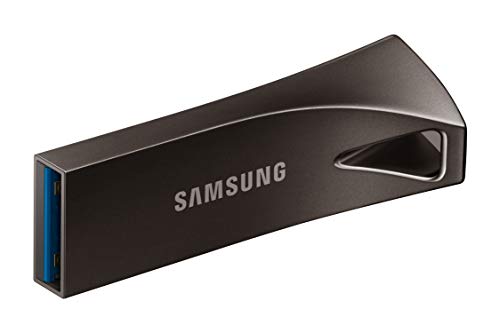
1. Samsung BAR Plus 128 GB
USB-A · 128 GB · metal body
According to Not a Tesla App, this is the same drive Tesla puts in new cars. A good replacement when the factory drive wears out.

2. SanDisk Ultra Fit 1 TB
On saleUSB-A · 1 TB · longest footage buffer
Tesla says a drive of 1 TB or more holds up to 24 hours of footage, and a small one only about an hour. This is the smallest way to get there with no cable and no external drive.
Flash drive wear and when an SSD is the better choice
Dashcam and Sentry Mode write data almost nonstop. According to Not a Tesla App, drives that are constantly overwritten can wear out faster, and a 1-2 TB drive extends their life.
The authors of the Tesla North America Guide say much the same. In their view, ordinary flash drives wear out under continuous recording. On a budget, they recommend a small 256 GB flash drive, and in the long run a portable SSD of 500 GB or more.
These are guide opinions, not Tesla data, so treat them as a hint. If you drive daily and park on the street, an SSD makes sense. If you only turn on Sentry Mode now and then, a flash drive is enough.
With an SSD, check the connector, because the glove box port is USB-A. A portable SSD with USB-C will need a USB-C to USB-A cable or adapter.
One limit comes from the guides: if you notice that recordings cut off or the car reports a drive problem, replace the drive before you need footage of an incident.
Formatting a flash drive step by step
The easiest way is to format the drive in the car itself. The Tesla does it on its own and creates the folder it needs right away.
- Step 1: plug the flash drive into the USB-A port in the glove box.
- Step 2: on the screen, open the Safety menu.
- Step 3: select Format USB Drive and confirm. Everything on the drive will be erased.
- Step 4: wait for the process to finish. The car will create a TeslaCam folder.
If you prefer a computer, choose exFAT, MS-DOS FAT, ext3 or ext4. Then create a folder named TeslaCam on the drive. Without it, the car won't save recordings, because when you format on a computer you have to add the folder yourself.
Frequently asked questions about a flash drive for the Tesla Model 3
How many GB does a flash drive for the Tesla Model 3 need?
The manual says 64 GB at minimum, but the more free space, the better. 128-256 GB works well to start. If you want a longer recording history, choose a bigger drive.
Which port in the Tesla Model 3 should I plug the flash drive into?
The USB-A port in the glove box. That's where the factory flash drive sits, and where Tesla recommends keeping the drive for recordings. If your car has a different connector, check the glove box before you buy.
Does the USB-C port in the Tesla Model 3 record Dashcam footage?
No. Recordings go to the drive in the glove box port. A flash drive with a USB-C plug needs an adapter to fit the USB-A port.
How do I format a flash drive for the Tesla Model 3?
In the car, open the Safety menu and select Format USB Drive. On a computer, use exFAT, FAT, ext3 or ext4 and add the TeslaCam folder by hand. NTFS doesn't work.
How long does the Tesla Model 3 keep recordings?
It depends on the drive's capacity, because recordings overwrite in a loop. We gave specific times for a small and a large drive in the sections above. Keep in mind that features differ depending on the car and its configuration.
See also
- Which Home Charger for the Tesla Model 3 - 32 A or 48 A
- Best USB drive for Tesla Model Y and Model 3 - Dashcam and Sentry Mode
Sources
- Tesla Model 3 Owner's Manual: USB drive requirements for recording videos - manufacturer page (tesla.com)
- Tesla Model 3 Owner's Manual: Interior electronics - manufacturer page (tesla.com)
- Not a Tesla App: Top USB drives for Tesla Dashcam and Sentry Mode - industry article (notateslaapp.com)
- Tesla North America Guide: Sentry Mode and Dashcam - industry article (tslna.com)
- Electrek: Best Tesla SSD and USB drives - industry article (electrek.co)

Leave a comment
This site is protected by hCaptcha and the hCaptcha Privacy Policy and Terms of Service apply.