







As an Amazon Associate I earn from qualifying purchases.
Quick answer: our top pick is SanDisk 1TB Portable SSD (USB-C · up to 1000 MB/s · 1 TB).
Best SSD for iPad Pro M5? Quick answer
According to the manufacturer, a USB4 drive reaches up to 3800 MB/s, while a regular portable 10 Gb/s SSD tops out at 1050 MB/s. You'll feel the difference mainly with large video files. With photos and backups, it matters much less.
For photos, travel videos and file backups, a portable USB-C SSD with a 10 Gb/s connection is enough. If you edit large video straight from the drive, get a USB4 drive or a USB4 enclosure for an M.2 drive.
You can't upgrade the storage inside the iPad. So an external drive is the only way to get more room for your files.
Thunderbolt / USB 4 port and Apple's limits
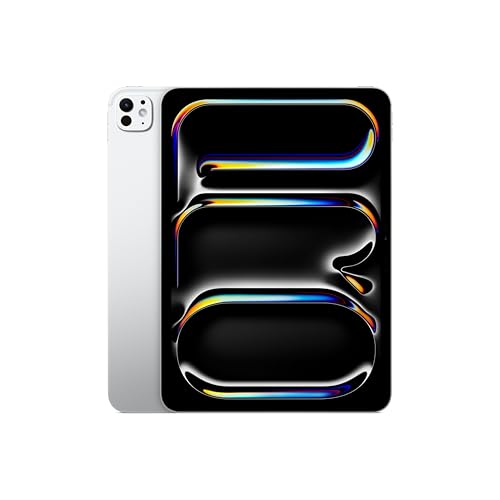
According to Apple's specs, the iPad Pro M5 has one Thunderbolt / USB 4 port. It supports charging and DisplayPort, as well as Thunderbolt 3 and USB 3. A drive with a USB-C plug connects without any adapters.
Fun fact: the plug looks the same, but the connection doesn't. Thunderbolt runs at up to 40 Gb/s, while regular USB 3 tops out at 10 Gb/s.
A 10 Gb/s drive can't use the faster connection, because the drive itself is slower. A USB4 drive or enclosure can, and that pays off with large video files.
Before you buy anything, check three things on your current drive or enclosure:
- Connection standard: whether it's 10 Gb/s or USB4 / Thunderbolt. This decides how fast you can copy large files.
- Plug type: whether the drive has USB-C, or you'll need to buy an adapter.
- Power: whether the drive or hub passes charging through, if you want to work with the charger plugged in.
We picked the drives and the enclosure based on how fast the connection is and who they suit: photos and backups, large video, or your own capacity.
Our advice: if you mostly make backups and store photos, get a 10 Gb/s portable drive. For large video, choose a ready-made USB4 drive or a USB4 enclosure with your own M.2 drive.
Best SSDs for iPad Pro M5 We Recommend

1. SanDisk 1TB Portable SSD
USB-C · up to 1000 MB/s · 1 TB
The current model of the SanDisk portable drive. The manufacturer lists up to 1000 MB/s read speed. A simple drive for photos, movies and file backups from your tablet.

2. SanDisk Extreme Portable SSD
On saleUSB-C · 10 Gb/s · IP65 · carabiner
Another of the best-selling external drives. Rubberized IP65 body and a carabiner loop, so it handles life in a bag well. On a Mac and iPad it runs at 10 Gb/s.

3. UGREEN 40Gbps USB4 M.2 NVMe enclosure
USB4 · 40 Gb/s · M.2 2280 · SSD not included
Enclosure for a standard NVMe M.2 2280 SSD, which you buy separately. You pop the SSD in without tools and get a fast external drive in whatever capacity you choose.
One port and charging: when a hub helps
Creative Bloq calls the single port the tablet's main limit. Once a drive is plugged in, there's nowhere to connect the charger. For a short session, like copying over photos, that's no problem.
It gets annoying during longer work: video editing, big backups or sorting a whole library. The battery drains and you can't top it up.
The fix is a USB-C hub with a power input. You plug the drive and the charger into the hub, and the hub connects to the tablet with a single cable. A separate article covers USB-C hubs for the iPad Pro M5.
Fun fact: according to Gizmodo, a drive plugged into the only port blocks charging if it doesn't pass power through.
exFAT, the Files app, a ready-made drive or an enclosure
If you'll use the drive on both an iPad and a Windows computer, format it as exFAT. Both devices can read this file system, so there's nothing to convert along the way.
After you plug it in, open the drive in the Files app. It shows up in the list of locations, and from there you can copy and move files or open them in other apps.
A ready-made drive is the simplest route. Take it out of the box, format it and start working. It's a good fit if you don't want to assemble anything and the capacity you need is on offer.
A USB4 enclosure for an M.2 drive gives you more freedom. You buy the NVMe M.2 2280 drive separately, so you choose the capacity and can swap it later. The only downside: you have to install the drive in the enclosure yourself.
Check the seller's listing for what's in the set, including the cable. Don't assume the box includes the USB-C cable you need for the iPad.
Common questions about drives for the iPad Pro M5
Which SSD for iPad Pro M5?
For photos, videos and file backups, a portable 10 Gb/s SSD is enough. For large video files, choose a USB4 drive or a USB4 enclosure for an M.2 drive. The iPad's faster port only helps if the drive supports it.
Does the iPad Pro M5 have Thunderbolt?
Yes. According to Apple, it has one Thunderbolt / USB 4 port, which also handles charging and DisplayPort. You can plug in USB-C drives without adapters.
Will a USB4 drive be faster on the iPad Pro M5?
Yes, because it can use the faster Thunderbolt / USB 4 connection. You'll notice it most with large video files. For photos and backups, a 10 Gb/s drive is usually enough.
Can you charge the iPad Pro M5 with a drive connected?
Yes, if you use a hub with a power input. The hub lets you connect a charger and a drive at the same time through the tablet's single port.
How do you format a drive for the iPad Pro M5?
Choose exFAT. Both the iPad and a Windows computer can read this file system. After you plug in the drive, you can open it in the Files app.
See also
- Which charger for Apple iPad Pro M5 - how many watts you really need
- Which keyboard for iPad Pro M5 - the M4 one fits, older ones don't
- Which Apple Pencil for iPad Pro M5 - Pro for drawing or USB-C
- Best SSD for iPhone 18 Pro and 17 Pro - Recording ProRes to an External Drive
- Best SSD for iPad Air M4 - USB-C 10 Gb/s, Files app and flash drive
Sources
- Apple Support: iPad Pro (M5) - Tech Specs - manufacturer page (support.apple.com)
- MacRumors: iPad Pro M5 review - industry article (macrumors.com)
- Creative Bloq: iPad Pro M5 review - industry article (creativebloq.com)
- Gizmodo: iPad Pro M5 review - industry article (gizmodo.com)
- T3: Apple iPad Pro M5 review - industry article (t3.com)



Leave a comment
This site is protected by hCaptcha and the hCaptcha Privacy Policy and Terms of Service apply.