


As an Amazon Associate I earn from qualifying purchases.
Quick answer: our top pick is Dell 27 Plus S2725QS (27-inch · 4K · 120 Hz · HDMI and DisplayPort).
Best monitor for Mac mini M6? Start with a 27-inch 4K over HDMI
For everyday work, browsing, office tasks and videos, a 27-inch 4K monitor connected with an HDMI cable is enough. If sharper text matters to you, look at 5K.
USB-C charging gives the Mac mini nothing. The computer has its own power cable and does not draw power from the monitor, so you can ignore 65 W, 90 W or 96 W in a monitor's description. It only comes in handy if you have a laptop on the same desk.
The Mac mini has no screen, so the monitor is a separate purchase. Below you will find when 4K is enough and when it is worth paying extra for 5K, how to choose the port, and how many screens the computer can handle.

4K or 5K: what 218 PPI changes
According to Cult of Mac, Macs look best on Retina screens, which have twice the pixel density. Such screens are more expensive, though. On 27 inches, that density is exactly what 5K delivers.
27-inch 5K panels have 218 PPI, the same as the Apple Studio Display. 4K, QHD and ultrawide models trade sharpness for a higher refresh rate or a wider image. So the choice comes down to the type of panel.
Who is 4K perfectly fine for? Someone who works in spreadsheets, a browser and documents, watches videos and does not stare at small text every day. You also get a higher refresh rate, because the Mac mini can handle 4K up to 165 Hz.
Who is 5K for? People who spend many hours at the screen working with text, code or photos and want the sharpest possible image. With a single monitor, the Mac mini can handle 5K up to 120 Hz.
Fun fact: A 27-inch 5K panel has 218 PPI, exactly the same as the Apple Studio Display, including those from other manufacturers.
We chose the products below to show a few paths: 4K for regular work, 4K with color in mind, and 5K for sharp text.

Recommended monitors for Mac mini M6
1. Dell 27 Plus S2725QS
27-inch · 4K · 120 Hz · HDMI and DisplayPort
The best seller in this list. You connect the Mac mini with a regular HDMI cable, and the 4K IPS panel at 120 Hz is plenty for work and movies. It has no USB-C, but the Mac mini does not need it for power.
2. Dell 27 Plus S2725QC
27-inch · 4K · 120 Hz · USB-C and USB ports
The same 4K 120 Hz screen as the S2725QS, with USB-C added. One cable carries picture and data, and the USB ports are right on the monitor. The 65 W charging only helps a laptop, because the Mac mini has its own power.

3. Apple Studio Display (2026)
27-inch · 5K · 600 nits · Thunderbolt 5
Apple's own monitor: 27-inch 5K, 600 nits, two Thunderbolt 5 ports, a 12 MP camera and six speakers. It is all in one body, so you need no separate webcam or speakers on the desk.

4. LG UltraFine 27UP850K
27-inch · 4K · 95% DCI-P3 · USB-C and HDMI
A middle ground between the Dell and the Apple: 27-inch 4K, 95% DCI-P3 and DisplayHDR 400. It has HDMI and USB-C, so the Mac mini connects either way.
HDMI, USB-C or Thunderbolt: which port for what
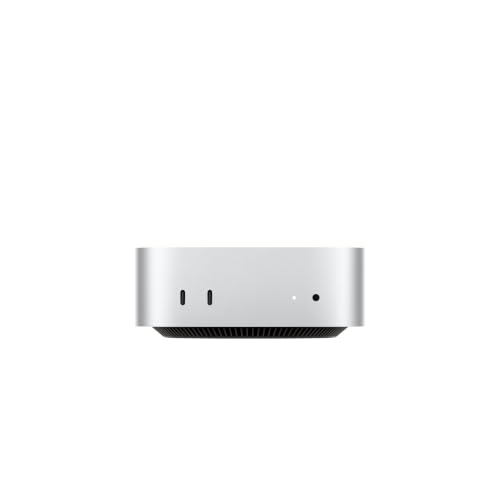
The Mac mini with M6 has three Thunderbolt 4 (USB-C) ports and one HDMI port on the back. You can connect a single monitor via Thunderbolt or HDMI, and the resolution and refresh rate limits are the same.
HDMI is the simplest option for a 4K monitor without USB-C. You take a regular cable, plug it in, and it works. An example is the Dell S2725QS, which has HDMI and DisplayPort but no USB-C.
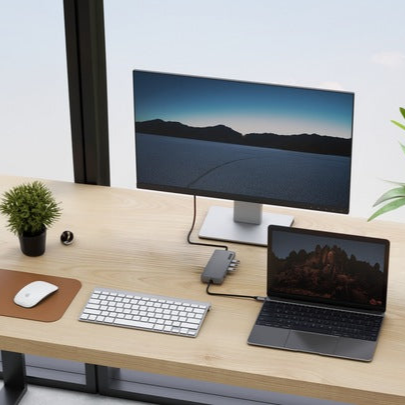
Thunderbolt 4 suits 5K monitors and models with USB-C. A cable carrying video and data makes sense when the monitor has built-in USB ports and you want to connect a keyboard, drive, or camera to it with a single cable. That is how monitors with USB-C and USB ports in the housing work.
It is also worth knowing that HDMI works well for a third 4K screen. In a three-monitor setup, the third one can get 5K 60 Hz via Thunderbolt or 4K 60 Hz via HDMI.
Keep in mind that the USB-C port on the monitor is used here for video and data, not for powering the computer. The Mac mini is always powered by a separate cable.
How many monitors you can connect to the Mac mini M6
According to Apple, the Mac mini with M6 supports up to three monitors at once. The limits depend on the number of screens.
- One monitor: up to 8K 60 Hz, up to 5K 120 Hz, or up to 4K 165 Hz, via Thunderbolt or HDMI.
- Two monitors: both up to 6K 60 Hz or up to 4K 165 Hz, via Thunderbolt or HDMI.
- Three monitors: two up to 6K 60 Hz or 4K 165 Hz, and the third at 5K 60 Hz via Thunderbolt or 4K 60 Hz via HDMI.
A hub or daisy chaining lets you connect two monitors to a single Thunderbolt port. However, this does not raise the limit of three monitors.
When you connect several screens with different resolutions, Apple advises connecting the one with the highest resolution first.
Fun fact: the small Mac mini with M6 can drive a single 8K 60 Hz monitor.
Frequently asked questions about a monitor for the Mac mini M6
Which monitor should I choose for the Mac mini M6?
For everyday work, choose a 27-inch 4K and connect it via HDMI. If you want sharper text, look for a 27-inch 5K, because it has 218 PPI like the Apple Studio Display. For color work, you can consider a model with wide color gamut coverage, for example the ASUS ProArt.
Is a 4K monitor enough for the Mac mini M6?
Yes, it is enough for most tasks. The Mac mini supports 4K up to 165 Hz on one and two monitors. Text will be less sharp than on 5K, but for many people it is a reasonable compromise, especially since 5K is more expensive.
Does the Mac mini M6 need a monitor with USB-C?
No. You power the Mac mini with its own cable, so charging over USB-C does nothing for it. USB-C makes sense when you want to send video and data over a single cable or charge a laptop on the same desk.
How many monitors can be connected to the Mac mini M6?
Up to three at once. Two can run at up to 6K 60 Hz or 4K 165 Hz, and the third is 5K 60 Hz via Thunderbolt or 4K 60 Hz via HDMI. A hub or daisy chain lets you connect two monitors to one Thunderbolt port, but it does not raise the limit of three monitors.
Is it better to connect a monitor via HDMI or Thunderbolt?
With a single monitor the limits are the same, so choose whichever is more convenient. HDMI is the simplest for 4K without USB-C. Choose Thunderbolt for 5K monitors and models with USB-C, especially when you want to use the USB ports in the monitor.
More Mac mini guides
- Best docking station for Mac mini M4 - front ports and an M.2 SSD
- Best docking station for Mac mini M6 - M4 docks fit too
- Best external SSD for Mac mini M6 - which port gives full speed
See also
- Which USB-C cable for a monitor? A comprehensive guide - USB 4 and USB 3.2.
- Best docking station for Mac mini M6 - M4 docks fit too
- Best external SSD for Mac mini M6 - which port gives full speed
- Best monitor for Mac Studio M5 - 5K or 6K and how many displays
- Best monitor for MacBook Pro OLED (M5 Pro and M5 Max) - up to four displays on one cable
- Best monitor for iPad Air M4 - USB-C, 4K and the 60 Hz limit
Sources
- Apple Support: How many displays can be connected to Mac mini with M6 chip - manufacturer page (support.apple.com)
- Apple: Mac mini technical specifications - manufacturer page (apple.com)
- TechRadar: Best monitors for Mac mini - industry article (techradar.com)
- Cult of Mac: Best Mac monitor - industry article (cultofmac.com)
- iThinkDifferent: Best monitors for M6 Mac mini - industry article (ithinkdiff.com)

Leave a comment
This site is protected by hCaptcha and the hCaptcha Privacy Policy and Terms of Service apply.