


Best docking station for Mac mini M4?
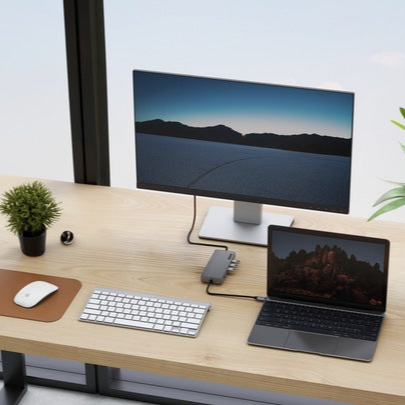
The Mac mini M4 natively supports up to three displays, so you don't buy a docking station just to connect extra screens. You choose it primarily to gain convenient front port access, a memory card reader, and a built-in slot for an additional M.2 NVMe drive.
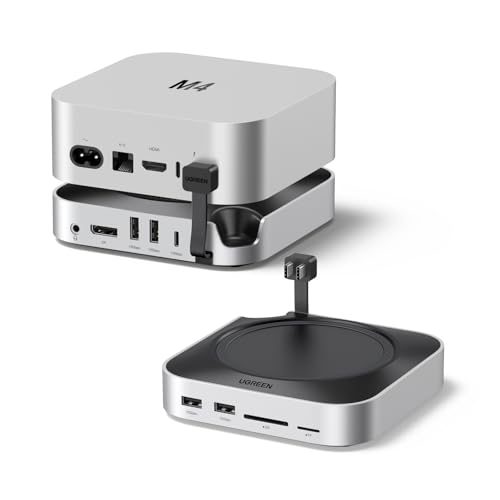
The most popular solution for this computer are dedicated stands, such as those from UGREEN, tailored in size to the new Mac's enclosure. The computer sits directly on top of the stand, making the entire setup look cohesive without taking up extra desk space.
Instead of reaching behind the enclosure every time you want to plug in an accessory, you have all the essential ports within arm's reach. Additionally, you gain storage space without cable clutter and without the need to buy expensive configurations with larger internal drives.
What the Mac mini M4 lacks and how a stand fixes it
Apple equipped the Mac mini M4 with modern ports, but in everyday use, you will quickly notice certain shortcomings. You won't find a single classic USB-A port on the computer, which makes connecting an older flash drive, a mouse with a nano receiver, or an accessory charging cable difficult.
On the front, you only have two USB-C ports with speeds up to 10 Gb/s and a headphone jack. The back features three Thunderbolt 4 ports with speeds up to 40 Gb/s, an HDMI output, and an Ethernet port. The stock setup also lacks an SD card reader, which means having to use external adapters when importing photos from a camera.
Another issue frequently mentioned in reviews is the power button, which on the Mac mini M4 has been moved to the bottom of the case. A dedicated stand solves this problem, as manufacturers include special cutouts or levers that allow you to conveniently turn on the computer without lifting it off the desk.
Fun fact: The Mac mini with the M4 chip is the smallest Mac mini in history. The computer's chassis measures just 12.7 by 12.7 centimeters, making the entire device easily fit in the palm of your hand.
10 Gb/s or 40 Gb/s bandwidth: what to choose for an M.2 drive
Mac mini stands differ primarily in their controller and data transfer speeds. The most popular versions use a connection with a bandwidth of 10 Gb/s, which caps the speed of the installed M.2 NVMe drive to around 1 GB/s.
This transfer speed is completely sufficient if you need space for regular backups, a home photo archive, or storage for less frequently used documents. For everyday office tasks, a drive running at 1 GB/s works great, and you won't notice any lag in application performance.
However, if you edit large video files or frequently transfer huge data packages, a 40 Gb/s station based on the USB4 standard will be a better choice. Such a stand allows you to work with a drive that is several times faster, enabling you to edit footage directly from the external drive without drops in performance.
We have prepared a list of the most popular stands and docking stations for the Mac mini M4, differing in the number of ports and supported drive speeds.
Recommended docks for Mac mini M4
As an Amazon Associate I earn from qualifying purchases.

1. UGREEN Mac mini M4 Dock with DisplayPort
stand · DisplayPort · M.2 SSD bay
Sits under the Mac mini and adds front ports, a DisplayPort output and an M.2 NVMe SSD bay. The best-selling Mac mini M4 dock in our check.

2. UGREEN Mac mini M4 Dock & Stand
stand · 10 Gbps USB · card reader · M.2
The version without a video output: 10 Gbps USB ports at the front, SD and microSD readers and an M.2 SSD bay. It has the most reviews of the Mac mini docks.

3. iVANKY 13-in-1 Mac mini M4 Dock
stand · HDMI 4K 144 Hz · 13 ports
A stand with 13 ports and a 4K 144 Hz HDMI output. The maker describes a second monitor through the dock's HDMI when the dock is connected to a Thunderbolt port on the Mac.
M.2 NVMe drive bay in the stand and its uses
The drive bay built into the dock supports the M.2 NVMe format, making it the most convenient way to expand storage on your new Mac. The drive is installed directly inside the stand enclosure, underneath the computer.
This solution eliminates the need to buy external enclosures with cables that clutter your desk and collect dust. The drive simply becomes a permanent part of your workstation, accessible immediately after connecting the stand to the computer's Thunderbolt port with a single cable.
The extra space is perfect for setting up automatic Time Machine backups. You can also store large media libraries, downloaded installation files, or graphic design projects there without filling up the valuable startup drive on your Mac mini.
Questions and Answers
Does the Mac mini M4 need a docking station for two monitors?
No, the Mac mini M4 natively supports a multi-monitor setup without the need for a docking station. The computer has enough built-in video outputs to handle two high-resolution displays.
How many monitors does the Mac mini M4 support?
The computer supports up to three monitors simultaneously. You can connect two monitors at up to 6K 60 Hz via Thunderbolt ports and one monitor at up to 5K 60 Hz via Thunderbolt or up to 4K 60 Hz via the HDMI port.
Will the drive in the stand be as fast as the internal drive?
A drive in a 10 Gb/s stand reaches speeds of up to around 1 GB/s, so it will be slower than the factory internal drive. A model connected via a 40 Gb/s port allows for transfers that are several times faster, providing a very smooth experience when working with large files.
Does the Mac mini stand block the power button?
Most dedicated stands take into account the new power button location on the bottom of the Mac mini M4 enclosure. Depending on the model, the docks offer an appropriate finger cutout or a mechanical lever that lets you turn on the computer without lifting it.
What is the difference between a 10 Gb/s and a 40 Gb/s stand?
The main difference lies in the data transfer speed to the drive installed in the M.2 NVMe bay. A 10 Gb/s stand limits the drive to around 1 GB/s and is sufficient for backups, while the 40 Gb/s variant enables several times faster read and write speeds for video editing.
Sources
- Apple Support: Mac mini (M4, 2024) technical specifications - manufacturer page (support.apple.com)
- Tom's Guide: Satechi USB-C hub and stand on the Mac mini M4 - industry article (tomsguide.com)
- Macworld: Ugreen Mac mini M4 dock and stand - industry article (macworld.com)
- ThunderboltLaptop: Best Mac mini docking stations - industry article (thunderboltlaptop.com)
- Tom's Guide: a Mac mini M4 dock that fixes the power button problem - industry article (tomsguide.com)

Leave a comment
This site is protected by hCaptcha and the hCaptcha Privacy Policy and Terms of Service apply.