



As an Amazon Associate I earn from qualifying purchases.
Quick answer: our top pick is SanDisk Ultra 256 GB (256 GB · UHS-I · A1, U1 · up to 150 MB/s).
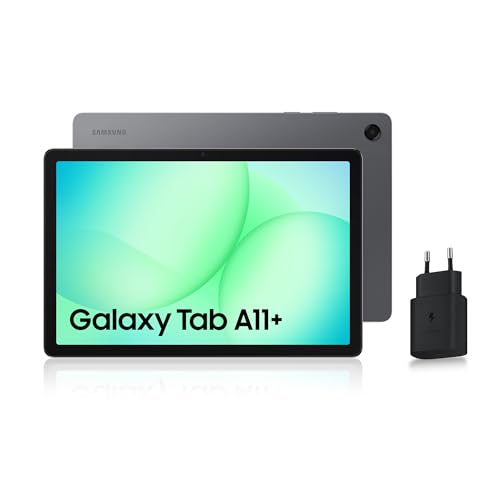
Best microSD card for Samsung Galaxy Tab A11+? For movies and photos, SanDisk Ultra 256 or 512 GB is enough
If you simply want more space for movies, photos and music, get a SanDisk Ultra 256 GB or 512 GB. It is an affordable card with the A1 class, which is perfectly adequate for such uses.
The tablet supports microSD cards up to 2 TB. However, there is no reason to go for that size, because 2 TB cards are expensive, and 1 TB is really a lot for a tablet.
Fun fact: a 2 TB card is sixteen times more than the storage of the cheaper version of this tablet.


How much storage the tablet has and when a card makes sense
The Galaxy Tab A11+ comes in two versions: 6 GB RAM with 128 GB of storage, or 8 GB RAM with 256 GB. You buy the microSD card separately, as Samsung does not include one.
With the 128 GB version, a card makes sense if you download movies for travel, store photos or have a larger music library. In that case, 256 GB is a sensible start, and 512 GB gives you plenty of room for years to come.
With the 256 GB version, a card is not necessary from day one. You can add one when you start running out of space for media, and you don't need to plan anything in advance.
Keep in mind that a card is first and foremost space for movies, photos and music. Treat it as an extra drawer for files, not as a replacement for internal storage.
Below we have gathered cards that we selected based on capacity, speed class and popularity among buyers: SanDisk Ultra in three sizes, Samsung EVO Select and SanDisk Extreme.

Recommended microSD cards for Samsung Galaxy Tab A11+
1. SanDisk Ultra 256 GB
256 GB · UHS-I · A1, U1 · up to 150 MB/s
SanDisk Ultra 256 GB with A1 rating, one of the best-selling microSD cards on Amazon.
2. SanDisk Ultra 512 GB
512 GB · UHS-I · A1, U1 · up to 150 MB/s
The best-selling microSD card on Amazon, more affordable than the Extreme series. Rated A1 and U1, so it works for games and files, but not for cameras requiring V30.

3. SanDisk Ultra 1 TB
1 TB · UHS-I · A1, U1 · up to 150 MB/s
1 TB SanDisk Ultra with A1 rating and read speeds up to 150 MB/s. One of the most affordable 1 TB cards from a well-known brand.
Buying on Black Friday? Read our guide: best microSD card for Switch 2, cameras and phones.
A1 or A2 V30: when to pay extra
For movies downloaded for a trip, an inexpensive UHS-I card with an A1 rating is enough. SanDisk Ultra is one of those, so there is no point overpaying if the card will just stay in the tablet.
A faster A2 V30 card, for example the SanDisk Extreme 256 GB, is worth it in one case: when you also use the same card in a camera. The V30 class is required for 4K video recording, and A2 helps with apps and games.
SanDisk Ultra 512 GB is rated A1 and U1, so it works for storing games and files, but not for cameras that require V30. If you are buying a card for a camera and a tablet at the same time, go straight for the Extreme.
Samsung EVO Select 512 GB (the 2024 version) is an alternative if you prefer a card from the same brand as your tablet. It has a read speed of up to 160 MB/s.
How to insert the card and what about apps
Fun fact: the card tray is opened with a pin that Samsung includes in the box along with the USB-C cable and a quick start guide. Push the pin into the hole next to the SIM/microSD tray and the tray will pop out.
Place the card in the designated spot on the tray and slide the whole thing back in. It is best to do this with the tablet turned off, and then check in the storage settings that the card has been detected.
Be careful with apps on the card. Samsung does not say whether the Tab A11+ allows moving them to the card. For the previous Tab A9+, it stated that storing apps on the card may be limited, so it is better not to assume it will work.
Most common questions about microSD cards in the Galaxy Tab A11+
What is the maximum microSD card size for the Galaxy Tab A11+?
Samsung states that the storage can be expanded with a microSD card of up to 2 TB. In practice, 256 or 512 GB is enough for most people, and 2 TB cards are expensive.
Does the Galaxy Tab A11+ have a card slot?
Yes. The tablet has a SIM/microSD tray, and you buy the card separately. The pin from the box is used to open the tray.
Can you move apps to the card in the Galaxy Tab A11+?
Samsung does not describe this on the product page. For the previous Tab A9+, it stated that storing apps on the card may be limited. Use the card mainly for movies, photos and music.
Does the Galaxy Tab A11+ need an A2 card?
No. For movies downloaded for a trip, an inexpensive UHS-I card with an A1 rating is enough. A2 V30 makes sense when you also use the same card in a camera.
How do you insert a card into the Galaxy Tab A11+?
Push the pin from the box into the hole of the SIM/microSD tray and take out the tray. Place the card in the designated spot, slide the tray back in and check in the settings that the tablet sees the card.
See also
- Best microSD card for Samsung Galaxy Tab S12+ and S12 Ultra - up to 2 TB, sold separately
- Best microSD card for Samsung Galaxy Tab A9+ - up to 1TB
- Best microSD card for Samsung Galaxy A17 - up to 2 TB next to SIM and eSIM
Sources
- Samsung: Galaxy Tab A11+ specifications - manufacturer page (samsung.com)
- GSMArena: Samsung Galaxy Tab A11+ specifications - industry article (gsmarena.com)
- Tech Advisor: Samsung Galaxy Tab A11+ review - industry article (techadvisor.com)
- Android Authority: Samsung Galaxy Tab A11+ review - industry article (androidauthority.com)
- CDW: Samsung Galaxy Tab A11+ SM-X230 - industry article (cdw.com)

Leave a comment
This site is protected by hCaptcha and the hCaptcha Privacy Policy and Terms of Service apply.