





As an Amazon Associate I earn from qualifying purchases.
Quick answer: our top pick is SanDisk Ultra 512 GB (512 GB · UHS-I · A1, U1 · up to 150 MB/s).
Best microSD card for Samsung Galaxy Tab S12? SanDisk Ultra is enough for videos and photos
If you mainly keep videos, photos, music and work files on your tablet, get the SanDisk Ultra 512 GB or 1 TB. For 4K video recording, it's better to aim for a card with A2 and V30 ratings, such as the SanDisk Extreme.
Both tablets, the Tab S12+ and the Tab S12 Ultra, have a microSD slot and support cards up to 2 TB. Samsung sells the card separately, so you won't find one in the box.
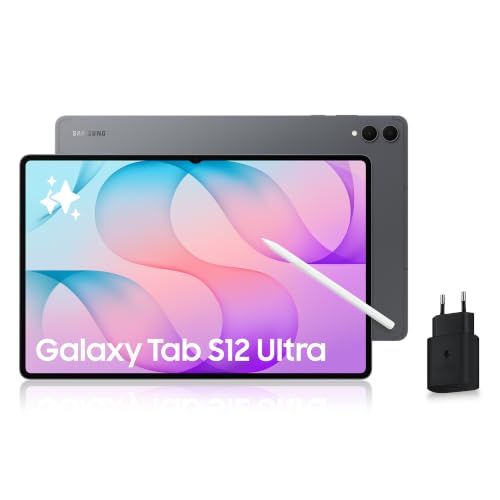
The box contains the tablet, an S Pen stylus, a 3 A USB-C cable (1 m), a SIM tray ejector pin and a quick start guide. There is no charger, but that's a topic for another guide.
Fun fact: a 2 TB card is eight times more than the 256 GB in the base version of the tablet. That difference is impressive, but in practice most people don't need that much.


How much storage the tablet has and when a card makes sense
Samsung sells two models. The Tab S12+ has a 12.6-inch display, 12 GB of RAM and 256 or 512 GB of storage. The Tab S12 Ultra has a 14.6-inch display, 120 Hz and a resolution of 2960 x 1848.
The Ultra comes in 256 GB or 512 GB with 12 GB of RAM, and 1 TB with 16 GB of RAM. Version availability depends on the market, so check what is offered in your region.
With 256 GB, a card makes the most sense. The 512 GB or 1 TB version with a card gives you room for large video and photo libraries, but with 1 TB in the tablet, the card will be more of an extra than a necessity.
For 256 GB, it's best to choose a 512 GB or 1 TB card. That doubles or greatly increases your space without hunting for the most expensive models. 2 TB cards are expensive, which is why they aren't on our list.
We put the cards together using a simple criterion: 512 GB and 1 TB capacity, well-known brands and a split into A1 and A2 V30 classes.

Recommended microSD cards for Samsung Galaxy Tab S12+ and S12 Ultra
1. SanDisk Ultra 512 GB
512 GB · UHS-I · A1, U1 · up to 150 MB/s
The best-selling microSD card on Amazon, more affordable than the Extreme series. Rated A1 and U1, so it works for games and files, but not for cameras requiring V30.

2. SanDisk Ultra 1 TB
1 TB · UHS-I · A1, U1 · up to 150 MB/s
1 TB SanDisk Ultra with A1 rating and read speeds up to 150 MB/s. One of the most affordable 1 TB cards from a well-known brand.

3. SanDisk Extreme 512 GB
512 GB · UHS-I · A2, U3, V30 · up to 190 MB/s
SanDisk Extreme in a 512 GB capacity. The V30 rating handles 4K recording, while A2 speeds up app and game loading times.
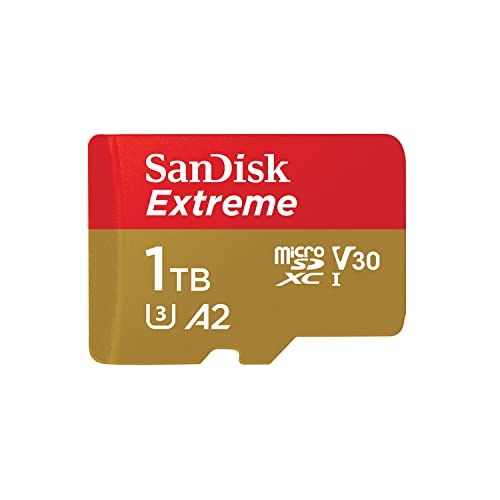
4. SanDisk Extreme 1 TB
1 TB · UHS-I · A2, U3, V30 · up to 245 MB/s
SanDisk Extreme with 1 TB capacity, featuring A2 and V30 ratings. It holds a large game library or many hours of footage.
A1 or A2 V30: when it is worth paying extra
For videos and photos, a UHS-I card with an A1 rating is enough. SanDisk Ultra 512 GB or 1 TB and Samsung EVO Select 512 GB are a good fit here. All of them are suitable for storing files and viewing them on a tablet.
A faster A2 V30 card, such as the SanDisk Extreme, comes in handy in two situations. The first is recording 4K video on the tablet. Ultra can record up to 3840 x 2160 at 60 fps, so the V30 class makes real sense here.
The second situation is using the same card in a camera or camcorder. Some cameras require V30, and a SanDisk Ultra with A1 and U1 ratings is not suitable for them.
If you do not record video and do not swap the card between devices, paying extra for the Extreme is unnecessary. It is better to choose a larger capacity in the Ultra series than a smaller one in the Extreme.
Fun fact: The Tab S12 Ultra is only 5.1 mm thick with a 14.6-inch screen. Even so, it still fits a card slot supporting up to 2 TB.
How to insert the card into the tablet
Turn off the tablet, take the pin from the box and push it into the hole in the tray. The tray will pop out, and you place the card in it so that it lies flat in the recess. Gently push the tray back in.
After you turn it on, the tablet should recognize the card. If you are asked whether to format a new card, confirm, but remember that this erases the data on the card.
Samsung does not state on its website whether apps can be moved to the card. Treat it primarily as a place for videos, photos, music and work files. Leave apps in the tablet's internal storage.
Frequently asked questions about microSD cards for Galaxy Tab S12
What is the maximum microSD card size for Galaxy Tab S12 Ultra?
The Tab S12 Ultra accepts microSD cards up to 2 TB, just like the Tab S12+. In practice, a 512 GB or 1 TB card is chosen most often, because larger ones are expensive.
Does the Galaxy Tab S12+ have a microSD card slot?
Yes. According to Samsung, all models in the series have a microSD slot, so the Tab S12+ does too. It supports cards up to 2 TB.
Does the Galaxy Tab S12 box include a card or a charger?
It includes neither a card nor a charger. The box contains the tablet, the S Pen stylus, a 3 A USB-C cable (1 m), a tray pin and a quick start guide. You have to buy the card and the charger separately.
Does the Galaxy Tab S12 need an A2 V30 card?
Not for videos and photos, a UHS-I card with an A1 rating is enough. It is worth choosing A2 V30 when you record 4K video on the tablet or use the same card in a camera or camcorder.
How do I insert a card into the Galaxy Tab S12?
Eject the tray with the pin from the box, place the microSD card in it and push the tray back in. It is best to do this with the tablet turned off. The tablet may ask you to format a new card.
Sources
- Samsung UK: Galaxy Tab S12+ and Tab S12 Ultra - manufacturer page (samsung.com)
- SamMobile: Do the Galaxy Tab S12+ and Ultra have microSD card slots? - industry article (sammobile.com)
- Expert Reviews: Samsung Galaxy Tab S12 Ultra review - industry article (expertreviews.co.uk)
- Business Today: Samsung Galaxy Tab S12 launch set for October 7 - industry article (businesstoday.in)
- testit.de: Samsung Galaxy Tab S12 Ultra, Datenblatt - industry article (testit.de)

Leave a comment
This site is protected by hCaptcha and the hCaptcha Privacy Policy and Terms of Service apply.