



As an Amazon Associate I earn from qualifying purchases.
Quick answer: our top pick is SATECHI Snap Hub 6-in-2 for MacBook Neo (made for Neo · HDMI 4K 60 Hz · 45 W charging).
Best docking station for MacBook Neo? Quick answer
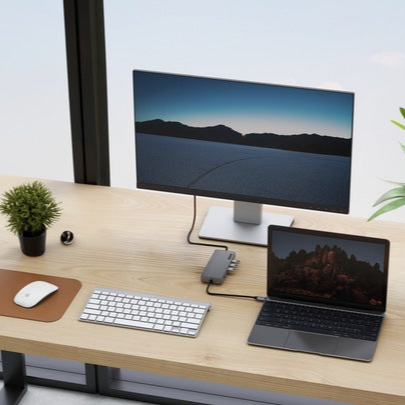
For your MacBook Neo, you need a hub or docking station with an HDMI port supporting 4K resolution at 60 Hz, plugged specifically into the rear USB-C port. This laptop natively supports only one external display with these specifications. The most convenient everyday choice is a compact hub dedicated to this model or a classic wired hub connected to the proper port.
If your goal is to work on a single monitor and connect a mouse, keyboard, and power supply, a standard USB-C hub with video output is more than enough. Things get tricky when you want to connect two monitors at once. In that case, a regular splitter will not work, and you must use a docking station with a dedicated graphics chipset.
Fun fact: The MacBook Neo is the first Mac powered by a processor previously known from a smartphone. The A18 Pro chip debuted in the iPhone 16 Pro, which is why the laptop shares some of the phone's limitations regarding external display support.
Ports on the MacBook Neo: which one transmits video
All USB-C ports on the MacBook Neo are located on the left side of the chassis, but their capabilities differ significantly. On the right side, you will find only a headphone jack, so you cannot connect anything there other than audio. Understanding the difference between the two left ports is essential to avoid desk-setup headaches.
The rear port, located closer to the screen hinge (referred to in Apple manuals as the left port), is a USB 3 port with bandwidth up to 10 Gb/s. It features DisplayPort 1.4 support and is the only port on the entire computer capable of sending a video signal to a monitor. The front port, on the other hand, is standard USB 2 with speeds up to 480 Mb/s, intended solely for battery charging and connecting basic accessories.
If you plug a hub with an HDMI cable into the front port, the monitor will stay black. The MacBook Neo operating system will detect this mistake and show an on-screen warning informing you that the monitor is connected to the wrong port. It is also worth remembering that the laptop does not support the Thunderbolt standard.
Dual monitors on MacBook Neo: how to bypass the limitations
macOS does not support MST (Multi-Stream Transport) technology. This means that if you connect a station with two HDMI ports without additional technology, such as the UGREEN Revodok 10 in 1, you will see the exact same mirrored image on both monitors. The laptop treats such a station as a single display.
The only way to get two independent desktops on a MacBook Neo is a dock with DisplayLink technology, such as the ACASIS DS0602. DisplayLink works differently than standard video output: the station has its own built-in graphics processor. The image is compressed by the DisplayLink Manager app and transmitted through the cable as standard USB data packets.
However, the DisplayLink solution has some drawbacks that you should be aware of before buying. It requires software installed on the system, and transmitting video puts a load on the computer's CPU. Additionally, you cannot watch HDCP-protected video via DisplayLink, which blocks playback on several popular streaming services.
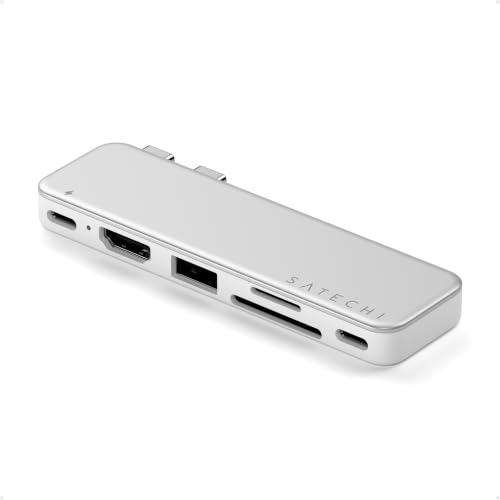
Also watch out for popular accessories with two rigid USB-C connectors designed for MacBook Air or Pro. The MacBook Neo has a different electronic layout and asymmetrical port functions, so classic hubs designed for the Air do not work properly on the Neo (manufacturers, such as PULWTOP, explicitly exclude this model). If you prefer a flush-mount hub that attaches directly to the side of the chassis, choose models built strictly for the Neo, like the SATECHI Snap Hub 6 in 2, where all data transfer runs through the USB 3 port and the second connector serves solely for physical stabilization.
Fun fact: DisplayLink technology, which allows users to bypass Apple silicon display limitations, has been developed under the Synaptics umbrella since 2020.
Below you will find hubs and docking stations selected according to manufacturers' specifications for MacBook Neo ports.
Recommended docks for MacBook Neo

1. SATECHI Snap Hub 6-in-2 for MacBook Neo
made for Neo · HDMI 4K 60 Hz · 45 W charging
A two-plug hub designed for MacBook Neo's ports: video, data and charging go through the USB 3 port, and the second plug just keeps the hub steady. 4K 60 Hz HDMI, which is the most Neo can send to a monitor.

2. ACASIS DS0602 DisplayLink Dual HDMI
DisplayLink · 2 monitors on Neo and M1-M3 · 100 W
Two 4K 60 Hz monitors even where the Mac itself drives one screen: the maker lists M1, M2, M3, M4 and Neo. It needs the DisplayLink driver, does not play HDCP-protected content, and its USB-A ports are slow (fine for a mouse and keyboard).

3. UGREEN Revodok Pro 210 10-in-1
2x HDMI · Ethernet · 100 W charging
Two HDMI outputs, Ethernet and a card reader. On Windows it extends the desktop to two monitors. On a Mac both HDMI ports show the same picture because macOS does not support MST (UGREEN says so in the listing).
Charging via a hub: what to look out for
MacBook Neo does not feature a dedicated MagSafe port, which means you must supply power through one of the two USB-C ports. If you use a classic cable-connected hub plugged into the rear USB 3 port, it is best to choose a model with pass-through charging (Pass-Through). Then, you plug the power adapter directly into the hub, which powers the laptop and transmits video to the monitor using a single cable.
The dedicated SATECHI Snap Hub 6 w 2 accepts up to 45 W charging and delivers it directly through the rear USB 3 port. On the other hand, more advanced desktop stations, like the aforementioned ACASIS, can deliver up to 100 W charging.
You can also connect the charger directly to the front USB 2 port and leave the rear USB 3 port exclusively for a video adapter or a fast drive. Just remember not to connect fast storage media to the front port, as the 480 Mb/s speed will drastically limit their performance.
Questions and answers about docking stations for MacBook Neo
How many monitors does MacBook Neo support?
MacBook Neo natively supports only one external monitor with a maximum resolution of 4K at 60 Hz. Connecting a second independent display is only possible using a dedicated docking station with DisplayLink technology.
Which port on MacBook Neo should you connect a monitor to?
The monitor should always be connected to the rear USB-C port, located closer to the display hinge. This is the only port that supports the USB 3 standard and DisplayPort 1.4 signal transmission. The front port is only USB 2 and will not transmit video to the screen.
Does MacBook Neo support Thunderbolt?
No, MacBook Neo does not feature a Thunderbolt controller. The computer offers two USB-C ports, one of which operates under the USB 3 standard (up to 10 Gb/s) and the other under the slower USB 2 standard (up to 480 Mb/s).
How to connect two monitors to MacBook Neo?
To get two independent displays with an extended desktop, you must purchase a docking station with an external DisplayLink chip, such as the ACASIS DS0602. Standard stations with two HDMI ports will not work in extended mode due to the lack of MST technology support in macOS.
Does DisplayLink have any drawbacks?
Yes, using DisplayLink requires installing a dedicated driver on the system and generates an additional load on the computer processor. Furthermore, this technology does not support HDCP protection, which means video from some streaming platforms may not display on the monitor.
Sources
- Apple: MacBook Neo technical specifications - manufacturer page (apple.com)
- Apple Support: Connect an external display to MacBook Neo - manufacturer page (support.apple.com)
- MacRumors: MacBook Neo can only drive one external display at 4K 60Hz - industry article (macrumors.com)
- AppleInsider: How to use more than one external monitor on MacBook Neo - industry article (appleinsider.com)
- 9to5Mac: MacBook Neo warns you if you plug a display into the wrong USB-C port - industry article (9to5mac.com)
- Plugable: How to use multiple monitors with the MacBook Neo - industry article (plugable.com)

Leave a comment
This site is protected by hCaptcha and the hCaptcha Privacy Policy and Terms of Service apply.