




Best docking station for MacBook Air M4?
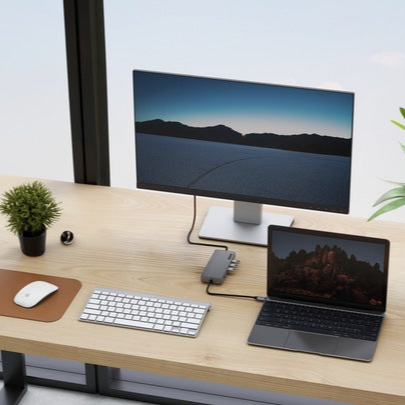
The choice depends on how many external screens you want on your desk. If one monitor is enough for you, a simple USB-C hub with an HDMI output supporting 4K at 60 Hz will work best. For two monitors, you need a Thunderbolt station with two video outputs or an adapter with two separate USB-C plugs.
The MacBook Air with the M4 chip introduced a major change in display support. The computer allows you to connect up to two external monitors with the laptop lid open. This gives you a total of three displays, including the computer's built-in screen.
Things were different with older generations. The MacBook Air with M1 and M2 chips officially supports only one external screen. The M3 model can handle two monitors, but only when you close the laptop lid.
On the M4 model, closing the lid does not increase the display limit. You can still have a maximum of two external monitors. If you connect one display, the M4 chip supports resolutions up to 8K at 60 Hz, 5K at 120 Hz, or 4K at 240 Hz. When you connect two displays, each can run at up to 6K at 60 Hz or 4K at 144 Hz.
The MST trap: why a cheap hub mirrors the display
Many users buy a regular USB-C hub equipped with two HDMI ports, expecting two independent screens. After connecting such an accessory to a Mac, it turns out that both monitors show the exact same image. This happens due to the lack of MST support in macOS.
MST, or Multi-Stream Transport, is a DisplayPort standard feature that allows multiple independent video signals to be transmitted over a single cable. Windows handles this technology without issue and extends the desktop across two monitors. macOS does not support this protocol and treats such a signal as a single display, duplicating it on the second port.
Manufacturers of inexpensive accessories often mention this limitation in the fine print. UGREEN explicitly notes in the descriptions of its universal dual-HDMI hubs that Apple computer users will only get a mirrored display. If you need an extended desktop, you must choose a different technical solution.
Fun fact: MST technology was officially introduced with the launch of the DisplayPort 1.2 standard, which made it possible for the first time to transmit multiple independent video streams through a single physical connector.
Three ways to connect two monitors
The first and most elegant solution is a Thunderbolt docking station with two video outputs, such as the SATECHI Thunderbolt 4 Dock. This type of device connects to the laptop with a single cable, and the built-in controller transmits two independent video streams. The manufacturer of this dock explicitly confirms support for two 4K monitors at 60 Hz on models with M4 and M5 chips.
The second method is a docking station with a dual USB-C plug, such as the PULWTOP 11 in 2. The device plugs into both computer ports simultaneously, so each monitor uses a separate signal path in the MacBook. The manufacturer of this solution lists compatibility with standard M4 and M5 chips, while excluding base M1, M2, and M3 versions as well as the MacBook Neo model.
The third approach is to skip the docking station entirely and use two separate cables. You can buy USB-C to HDMI or USB-C to DisplayPort cables and plug them directly into both ports of the MacBook Air. This is the cheapest method to get two independent monitors, although it takes up all the USB-C ports on the computer.
There are also docks based on DisplayLink technology, which transmit video through a software driver. This solution bypasses hardware limitations, but it requires software installation on the system and does not support playing video content protected by the HDCP protocol.
Fun fact: Thunderbolt technology was developed in collaboration between Intel and Apple, and the first mass-production computer equipped with this interface was the MacBook Pro introduced in early 2011.
Below, we have gathered hubs and stations selected according to manufacturer specifications and popularity, tailored for various desk setups with the MacBook Air.
Recommended docks for MacBook Air M4
As an Amazon Associate I earn from qualifying purchases.

1. UGREEN Revodok Pro 210 10-in-1
2x HDMI · Ethernet · 100 W charging
Two HDMI outputs, Ethernet and a card reader. On Windows it extends the desktop to two monitors. On a Mac both HDMI ports show the same picture because macOS does not support MST (UGREEN says so in the listing).
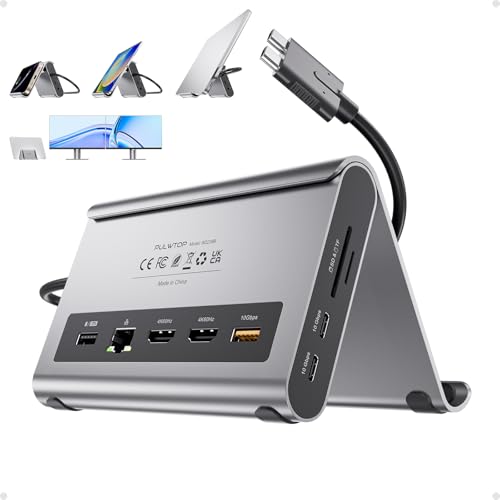
2. PULWTOP 11-in-2 dual monitor dock
2 monitors on M4/M5 · 2x HDMI 4K 60 Hz · two plugs
It plugs into both USB-C ports on the MacBook, so each monitor gets its own connection and shows its own picture. The maker lists base M4 and M5 and excludes base M1, M2, M3 and MacBook Neo. You need your own 65 W or stronger charger (none in the box).

3. SATECHI Thunderbolt 4 Dock 12-in-1
Thunderbolt 4 · 2 monitors on M4/M5 · 96 W charging
A full Thunderbolt 4 dock on one cable. The maker states two 4K 60 Hz monitors on M4 and M5 MacBooks, 96 W laptop charging, Ethernet and a card reader.
What to consider before choosing a docking station
A key specification when choosing a hub is refresh rate support at 4K resolution. Budget accessories, such as the UGREEN Revodok 105 or 1071, only offer 30 Hz at 4K resolution. In practice, this means visible mouse cursor stutter and rapid eye strain during office work.
For comfortable work on a high-resolution monitor, choose hubs supporting HDMI 4K at 60 Hz, such as the Anker 7-in-1 model. Smooth motion at 60 frames per second is the absolute minimum to maintain the comfort you are used to from an Apple laptop display.
Also pay attention to how the entire setup is powered. Some docking stations include their own power adapter in the box, like the SATECHI dock that delivers 96 W of power to charge the laptop. Other designs, including the mentioned PULWTOP adapter, require connecting a separate 65 W or higher power supply, which is not included with the hub.
Sales data from Amazon platforms in Italy and France from October 3, 2026, shows a clear trend. MacBook Air users most often buy simple, compact hubs from brands like Anker and UGREEN, rather than heavy and expensive desktop docks. If you connect a single display and a few USB accessories, a simple adapter is the most cost-effective choice.
Frequently Asked Questions
How many monitors does the MacBook Air M4 support?
The MacBook Air with the M4 chip supports up to two external monitors at the same time. When connecting a single display, you can get up to 8K at 60 Hz, and with two screens, the limit is up to 6K at 60 Hz per monitor. Closing the laptop lid does not allow you to connect a third external display.
Does the MacBook Air M4 support two monitors with the lid open?
Yes, this model handles two external monitors with the lid open. You can simultaneously use the built-in laptop screen and two independent desktop monitors. In previous generations, such as the M3, connecting two displays required closing the lid.
Why does a hub with two HDMI ports show the same image on a Mac?
macOS does not support DisplayPort MST technology, which allows splitting a single video signal into multiple independent streams. In the Apple environment, budget USB-C hubs connected via a single cable force mirror mode. To get two extended desktops, each display must have a physically separate connection to the processor or use Thunderbolt technology.
Do you need a Thunderbolt dock for the MacBook Air M4?
A Thunderbolt dock is only necessary if you want to connect two independent monitors using a single cable plugged into the laptop. If you have one monitor, a standard USB-C hub with 4K 60 Hz HDMI output is sufficient. You can also connect two screens using two separate cables without having to buy an expensive dock.
Can I connect two monitors without a docking station?
Yes, all you need is two cables plugged directly into both USB-C ports on the MacBook Air. These can be USB-C to HDMI or USB-C to DisplayPort cables. The laptop will immediately detect both displays and allow you to extend the desktop, but this setup will occupy all the built-in ports on the computer.
Sources
- Apple Support: How many displays can be connected to MacBook Air - manufacturer page (support.apple.com)
- Plugable: Understanding external display support on Apple M1-M5 chips - industry article (kb.plugable.com)
- AppleInsider: New Plugable Thunderbolt 4 dock brings dual 4K HDMI to M4 Macs - industry article (appleinsider.com)
- Plugable: Products tested and approved for the Apple M4 MacBook Air - industry article (plugable.com)
- Kensington: Apple M3 MacBook Air and multiple displays - industry article (kensington.com)

Leave a comment
This site is protected by hCaptcha and the hCaptcha Privacy Policy and Terms of Service apply.