



As an Amazon Associate I earn from qualifying purchases.
Quick answer: our top pick is Dell 27 Plus S2725QC (27-inch · 4K · 120 Hz · USB-C 65 W).
Best monitor for MacBook Air M4? The simple answer: 27-inch 4K with USB-C
For everyday work, a 27-inch 4K monitor with USB-C is enough. One cable carries video and data, and it can also charge your laptop. If you mostly look at text, consider 5K, because on 27 inches it gives sharper characters.
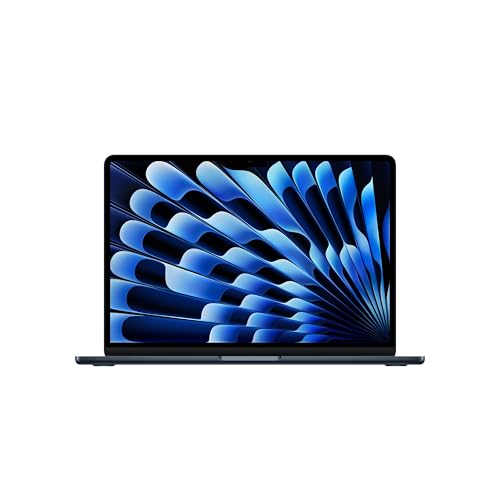
The MacBook Air with M4 (13 and 15 inches, 2025) also supports two external monitors with the lid open. So you don't have to close the laptop to get three screens: the built-in one and two additional ones.
Fun fact: The 13-inch MacBook Air with M4 has a 53.8 Wh battery (Apple).

How many monitors the MacBook Air M4 supports and at what resolution
According to Apple, the Air with M4 supports up to two external monitors at once, in addition to the built-in screen. The limits depend on how many monitors you connect:
- one monitor: up to 8K 60 Hz, 5K 120 Hz, or 4K 240 Hz,
- two monitors: up to 6K 60 Hz or 4K 144 Hz each.
Closing the lid does not increase the number of monitors. The maximum is two external ones, regardless of whether the built-in screen is on.
You connect monitors to the Thunderbolt 4 ports on the side. The 13-inch Air M4 has two such ports (USB-C) and MagSafe 3, but no HDMI. A monitor with USB-C connects with a cable and no adapters, while a monitor with only HDMI needs a cable or an adapter.
The difference compared to older models is clear. The Air with M3 gave you two monitors only with the lid closed, and the Air with M1 and M2 supported only one monitor. If you are buying monitors for a dual-screen setup and you have an older Air, that setup won't work.
Below we have gathered 27-inch monitors with USB-C in QHD, 4K, and 5K resolutions, so you can compare them by image sharpness and charging power.

Monitors for the MacBook Air M4 we recommend
1. Dell 27 Plus S2725QC
On sale27-inch · 4K · 120 Hz · USB-C 65 W
The best-selling USB-C monitor in this list: 27 inches, 4K and 120 Hz. One USB-C cable carries video and data and charges the MacBook at 65 W.
2. Apple Studio Display (2026)
27-inch · 5K · 600 nits · Thunderbolt 5
Apple's monitor: 27-inch 5K, 600 nits, two Thunderbolt 5 ports, a 12 MP camera and six speakers. All in one housing, so no separate webcam or speakers on the desk.

3. LG UltraFine 27UP850K
On sale27-inch · 4K · 95% DCI-P3 · USB-C about 90 W
A 27-inch 4K panel with 95% DCI-P3 and DisplayHDR 400 per LG. USB-C charges the laptop at about 90 W (listings say 90 or 96 W), plus two HDMI ports and DisplayPort.

4. Dell 27 Plus S2725DC
27-inch · QHD · 144 Hz · USB-C 65 W
Dell's cheaper option with QHD (2560 x 1440) at 144 Hz, still with USB-C and 65 W charging. Text on 27 inches is less sharp than 4K, but fine for the browser and spreadsheets.
Charging from a monitor: 65 W charges, 70 W is fast charging
A monitor with USB-C and 65 W charging will charge a MacBook Air. For desk work that is usually enough, and you end up with one cable on the desk instead of two.
Apple describes fast charging with a 70 W power adapter. A 65 W monitor is just below that threshold, so don't count on fast charging mode. A monitor with about 90 W goes past the threshold, so with a model like that, fast charging is within reach.
If the power adapter from the box stays in your bag, charging from the monitor saves one cable on the desk.
With two monitors, you use up both Thunderbolt ports. You can then charge through MagSafe or through one of the monitors, if it has USB-C power delivery.
Two monitors: two cables and the cheap hub trap
The most reliable setup is two cables to two Thunderbolt ports, one per monitor. Each screen then gets its own connection and the limit from Apple's specs, which is up to 4K 144 Hz or 6K 60 Hz per monitor.
A hub or daisy chain lets you connect two monitors to one port, but it does not raise the limit. What hub you buy also matters. macOS does not support MST, so a cheap hub with two HDMI outputs on one cable will show the same image on both monitors. Instead of an extended desktop, you get a mirrored copy.
Before you buy a hub with two HDMI ports, check whether the manufacturer describes it as supporting macOS with separate images. If not, it is safer to go for two monitors with USB-C and two cables. If you are looking for a docking station, a separate article covers a docking station for the MacBook Air M4.
Fun fact: The M4 is the first MacBook Air that can show an image on two external monitors with the lid open (MacRumors).
Frequently asked questions about a monitor for the MacBook Air M4
Which monitor for MacBook Air M4?
For most uses, a 27-inch 4K monitor with USB-C is enough. If you care about sharper text, choose 5K. Also check the charging power, because it decides whether the monitor can replace the power adapter.
How many monitors does the MacBook Air M4 support?
Up to two external monitors at once, in addition to the built-in screen. One monitor can run up to 8K 60 Hz, 5K 120 Hz or 4K 240 Hz. With two, the limit is up to 6K 60 Hz or 4K 144 Hz on each.
Does the MacBook Air M4 support two monitors with the lid open?
Yes. The Air with M3 supported two monitors only with the lid closed, and the M1 and M2 supported one monitor.
Does a 5K monitor work with the MacBook Air M4?
Yes. With one monitor, the Air with M4 supports 5K up to 120 Hz. With two monitors, the limit is 6K 60 Hz or 4K 144 Hz on each, so two 5K screens at 60 Hz fit within Apple's specs.
Will a USB-C monitor fast charge the MacBook Air M4?
It depends on the power. A 65 W monitor charges the Air, but Apple describes fast charging from a 70 W power adapter. A monitor with about 90 W goes past that threshold.
See also
- Best docking station for MacBook Air M4 - one or two monitors
- Best monitor for MacBook Air M5 - two screens with the lid open
Sources
- Apple Support: How many displays can be connected to MacBook Air - manufacturer page (support.apple.com)
- Apple Support: MacBook Air (13-inch, M4, 2025) tech specs - manufacturer page (support.apple.com)
- MacRumors: M4 MacBook Air supports two displays with the lid open - industry article (macrumors.com)
- AppleInsider: New M4 MacBook Air fixes the line's biggest problem - industry article (appleinsider.com)
- Box.co.uk: MacBook Air external display support from M1 to M5 - industry article (box.co.uk)

Leave a comment
This site is protected by hCaptcha and the hCaptcha Privacy Policy and Terms of Service apply.