

As an Amazon Associate I earn from qualifying purchases.
Quick answer: our top pick is Dell 27 Plus S2725DC (27 inches · 1440p · 144 Hz · USB-C).
Best monitor for Lenovo Legion Go 2? The easiest choice is a model with USB-C
The easiest option is to buy a 1440p monitor with a USB-C input that supports video over DisplayPort. Then a single cable carries the video from the console, and with a monitor that offers USB-C power delivery, it can also charge the Legion Go 2.
The right choice depends on where you play:
- At your desk: a 1440p monitor with USB-C, ideally with power delivery over that port.
- On the go: a 16-inch portable monitor that runs on a single USB-C cable and fits in your backpack next to the console.
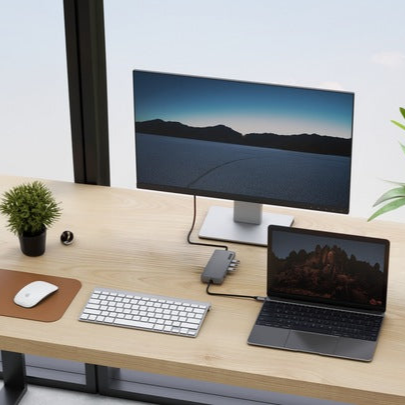
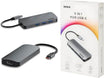
- A monitor without USB-C: connect it with a USB-C to DisplayPort cable or through a docking station with HDMI.
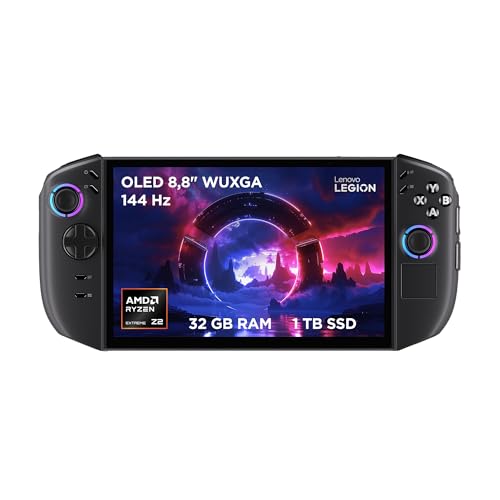
The Legion Go 2 is a handheld running Windows 11, so once you connect a monitor, you get a regular Windows desktop. That is why it is worth thinking right away about the resolution and about how you will power the console.
Legion Go 2 ports and charging with a monitor
According to Lenovo PSREF, the console has two USB-C ports with USB4 40 Gb/s. Both support Power Delivery 3.0 and DisplayPort 1.4, so you do not have to guess which port to use for the monitor.
Lenovo PSREF lists a 65 W USB-C charger and also a configuration without a charger, so check which version you are buying. According to Notebookcheck, a 65 W charger is enough for playing and charging at the same time.
If you want the monitor to charge the console, check the monitor's USB-C power delivery rating in its specs. A weaker charging port will not break the video output, but the console may then charge more slowly than the original charger allows. If the power is below 65 W, you can simply plug the charger into the second USB-C port.
Fun fact: The Legion Go 2 has a 74 Wh battery. According to Lenovo PSREF, Rapid Charge takes it to 50% in 30 minutes.
Below, we have put together monitors grouped by connector type, resolution, and size, so you can compare versions with and without USB-C.
Monitors we recommend for Lenovo Legion Go 2

1. Dell 27 Plus S2725DC
27 inches · 1440p · 144 Hz · USB-C
The best-selling USB-C monitor in this roundup. You connect the console with a single cable, no dock needed. 1440p is a sensible step up from the console screen, and 144 Hz matches its built-in display.

2. ARZOPA Z1FC 16.1" 144Hz portable monitor
On sale16.1 inches · 1080p · 144 Hz · USB-C
A portable monitor that runs on a single USB-C cable and fits in your backpack next to the console. 144 Hz matches the built-in display of the Legion Go 2.

3. Dell 27 Plus S2725QC
On sale27 inches · 4K · 120 Hz · USB-C
The 4K version with a USB-C input. A sharp picture for movies and the Windows desktop, and in demanding games you can lower the resolution. A good pick if the monitor doubles as a workspace for your laptop.

4. ASUS TUF Gaming VG27AQ3A
On sale27 inches · 1440p · 180 Hz · no USB-C
A 1440p 180 Hz gaming monitor with no USB-C input. You connect the console with a USB-C to DisplayPort cable or through a dock with HDMI.
1440p or 4K, and how many hertz
The console's screen is an 8.8-inch OLED with a resolution of 1920 x 1200 and a refresh rate of up to 144 Hz. A 1440p monitor is a sensible step up: the image is noticeably larger and sharper without becoming too demanding.
A 4K monitor makes sense mainly for movies and the Windows desktop, for example when the screen is also used for work. In demanding games you can lower the resolution in the game settings, but a specific result can't be promised in advance, because it depends on the title.
As for refresh rate, 144 Hz is exactly what the console's built-in screen offers. 180 Hz models are fine too, but smoothness depends on the game and the settings, not on the number printed on the box.
A curved monitor is a matter of taste. Some gamers prefer it for racing games, while a regular flat panel is usually more comfortable for the Windows desktop.
A dock with HDMI and playing without a controller
If your monitor has no USB-C, a dock is the most convenient option. The Lenovo Legion Go USB-C Dock supports one monitor over HDMI 2.0: either 4K 60 Hz or 2K 120 Hz. So you have to choose what matters more to you: sharpness or smoothness.
The dock also charges the console via pass-through. With a 65 W charger it delivers 45 W to the console, and with a 90 W charger or a stronger 65 W one, it delivers more. You can find details about the dock in a separate article about the docking station for the Legion Go 2.
With a monitor you don't need a separate controller. According to Notebookcheck, the right controller can work like a mouse in FPS mode, which is useful in shooters and when navigating Windows.
Fun fact: the Legion Go 2 controllers detach from the console just like the Joy-Cons on the Nintendo Switch, so with a monitor you can hold them in your hands or leave them on the desk.
Frequently asked questions about the Legion Go 2 and a monitor
Which monitor for the Lenovo Legion Go 2?
The best choice is a 1440p monitor with a USB-C input, because then a single cable is enough. On the road, a 16-inch portable monitor works well. You can connect a model without USB-C with a USB-C to DisplayPort cable or through a dock with HDMI.
Can I connect the Legion Go 2 to a monitor with a single USB-C cable?
Yes, if the monitor accepts video over USB-C as DisplayPort. Both USB-C ports on the console are USB4 with DisplayPort 1.4. Check the monitor's description to see whether its USB-C port supports video, because not every one does.
Will the monitor charge the Legion Go 2?
It can, if it has USB-C power delivery. You can find the charging power in the monitor's description. If the monitor's power output is weak, connect the original charger to the second port.
Is a 1440p or 4K monitor better for the Legion Go 2?
For everyday use 1440p is more comfortable, because the console's screen is 1920 x 1200 and it's a natural step up. Choose 4K when the monitor is used mainly for movies and work in Windows. In games you can lower the resolution in the settings.
How do I connect the Legion Go 2 to a monitor with HDMI?
Use a docking station with an HDMI output, for example the Lenovo Legion Go USB-C Dock with HDMI 2.0. You'll get 4K 60 Hz or 2K 120 Hz, and the console will be charged through the dock at the same time.
See also
- Best docking station for Legion Go 2 - official or cheaper
- Best SSD for Lenovo Legion Go 2 - 2242 or 2280 and the 2 TB limit
- Best power bank for Lenovo Legion Go 2 - 65 W and a 74 Wh battery
- Best microSD card for Lenovo Legion Go 2 - a fast reader, but no SD Express
Sources
- Lenovo PSREF: Legion Go 2 (8AHP2) specifications - manufacturer page (psref.lenovo.com)
- Lenovo Support: Legion Go USB-C Dock overview - manufacturer page (support.lenovo.com)
- Tom's Hardware: Lenovo Legion Go 2 review - industry article (tomshardware.com)
- Notebookcheck: Lenovo Legion Go 2 review - industry article (notebookcheck.net)
- Windows Central: Lenovo Legion Go 2 review - industry article (windowscentral.com)
- NoobFeed: Legion Go 2 docking guide - industry article (noobfeed.com)

Leave a comment
This site is protected by hCaptcha and the hCaptcha Privacy Policy and Terms of Service apply.