

As an Amazon Associate I earn from qualifying purchases.
Quick answer: our top pick is Metapen M2 (4096 levels · tilt · USB-C).
Best stylus for Surface Pro 13 (2026)? The short answer
Both the original Microsoft pen and a good MPP stylus offer 4096 pressure levels, so pressure alone won't decide it. For drawing and overall comfort, get the original pen. For notes, quick sketches and selecting text, an MPP-compatible stylus is plenty.
At home, at your desk, you'll notice the difference mostly when drawing: the original gives subtle haptic feedback and has its own spot in the keyboard. On the road, something else matters. A third-party stylus needs its own USB-C cable, so you have to pack it, while the original charges in the keyboard.
If you're buying just one: for notes and sketching, get an MPP stylus with tilt and 4096 pressure levels. Choose the original Microsoft pen only if you want haptic feedback.
What Surface Pro 13 (2026) supports
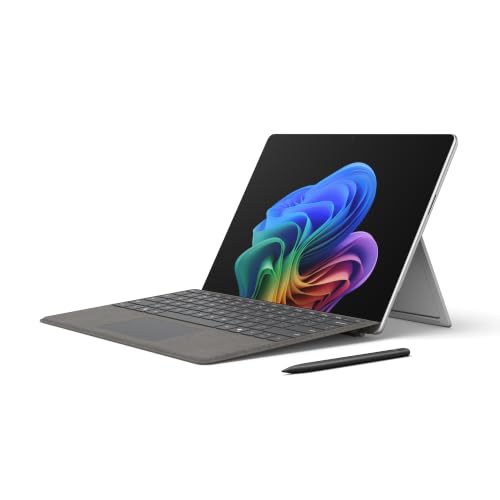
The 13-inch Surface Pro with Snapdragon X2 has been on sale since June 16, 2026. It has a 2880 x 1920 display with a 120 Hz refresh rate, and pen support is built in. You buy the stylus separately, though, because it doesn't come in the box.
According to Microsoft, the 12th-edition Surface Pro supports a pen with 4096 pressure levels, tilt, magnetic attachment and haptic feedback. That's the checklist for judging any stylus: pressure and tilt are the basics, the magnet makes it easier to carry, and haptic feedback is an extra you only get with the original.
The stylus must be compatible with Microsoft Pen Protocol (MPP). Windows Central points to a third-party stylus with MPP 2.0, tilt, USB-C charging, an eraser, buttons and a magnet as a sensible alternative to the original. The keyboard with a pen slot has its own article.
Fun fact: the original Microsoft pen charges in the keyboard with a pen slot, so it needs no cable.
Below we've collected an MPP-compatible stylus available in your market. We picked it based on compatibility with Surface pens, pressure levels and how it charges.
Our recommended styluses for Surface Pro 13 (2026)

1. Metapen M2
4096 levels · tilt · USB-C
Pen with 4096 pressure levels, tilt detection, an eraser on the end and USB-C charging. Windows Central lists it as an alternative to the original.
Original pen vs. MPP replacement: what really differs
Haptic feedback
The original gives subtle haptic feedback in Windows and supported apps. A replacement without a haptic module won't. You won't notice it when taking notes. For longer drawing sessions, it's a difference you may or may not appreciate, depending on your habits.
Charging
The original charges in the Surface Pro 13-inch Flex Keyboard or in a keyboard with a pen slot. A replacement charges with its own USB-C cable. At home that's a minor thing, but when you travel it's one more cable to pack.
Pressure and tilt
A good MPP replacement has 4096 pressure levels and recognizes tilt, so shading and line width changes work the way they should. Simpler styluses have 1024 pressure levels. That's enough for handwriting, but for illustration you're better off with a model that has the full range.
Eraser and buttons
Many replacements have an eraser on the end, buttons and a magnet. If you fix your notes often, an eraser saves you some steps. Check the seller's listing to see whether the stylus has a magnet, because that decides whether it stays attached to the tablet in your bag.
Which styluses won't work
A basic capacitive stylus, the kind with a rubber or mesh tip, taps the screen like a finger but can't sense pressure. That's fine for tapping through menus, but not for drawing. It's no good for handwritten notes with varying line thickness.
Apple Pencil won't give you pressure sensitivity on a Surface either. You need an MPP-compatible stylus, not just one with Bluetooth or charging. Before you buy, look for the exact name MPP in the listing.
Also watch out for the 12-inch Surface Pro. It's a different model with its own keyboard, so accessories listed for it don't always fit the 13-inch version. Check the listing to make sure the stylus is made for the Surface Pro 12th Edition.
Fun fact: The Surface Pro 12th Edition can deliver haptic feedback with the Slim Pen, and replacements don't have that feature.
Frequently asked questions about a stylus for the Surface Pro 13
Does the Surface Pro 13 (2026) come with a pen?
No, the pen is sold separately. Check the box contents in the seller's listing before you place your order.
Does the Slim Pen 2 work with the Surface Pro 13 (2026)?
Yes. Microsoft says the Surface Pro 12th Edition supports a pen with 4096 pressure levels, tilt and magnetic attachment. So you get the full feature set, for drawing and for notes.
Does a cheap MPP stylus work with the Surface Pro?
Yes, as long as it's MPP-compatible. You get pressure sensitivity and, in better models, tilt. You don't get haptic feedback, and you charge the stylus with its own USB-C cable.
How do I charge the Slim Pen 2?
Put the pen in the Surface Pro 13-inch Flex Keyboard or in a keyboard with a pen slot. It charges on its own while it sits in place.
Does Apple Pencil work with the Surface Pro?
It won't give you pressure sensitivity. For the Surface Pro you need a stylus compatible with Microsoft Pen Protocol (MPP).
See also
- Which keyboard for Surface Pro 13-inch (2026) - original or Bluetooth
- Best docking station for Surface Pro 13 (2026) - USB4, dual monitors and charging
- Best monitor for Surface Pro 12-inch and 13-inch - USB-C, one cable and how many screens
Sources
- Microsoft: Surface Pen compatibility and features - manufacturer page (support.microsoft.com)
- Microsoft: the next Surface Pro and Surface Laptop - manufacturer page (blogs.windows.com)
- Windows Central: Best Surface Pen alternatives - industry article (windowscentral.com)
- Notebookcheck: Microsoft Surface Pro 13 2026 - industry article (notebookcheck.net)
- Tom's Hardware: new Surface Pro and Surface Laptop - industry article (tomshardware.com)
- Thurrott: Microsoft refreshes Surface - industry article (thurrott.com)

Leave a comment
This site is protected by hCaptcha and the hCaptcha Privacy Policy and Terms of Service apply.