

As an Amazon Associate I earn from qualifying purchases.
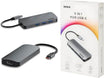
Quick answer: our top pick is UGREEN Revodok 10-in-1 USB-C dock with dual HDMI (USB-C hub · 2 x HDMI · Ethernet · pass-through charging).
See UGREEN Revodok 10-in-1 USB-C dock with dual HDMI on Amazon →
Best docking station for Surface Pro 13?
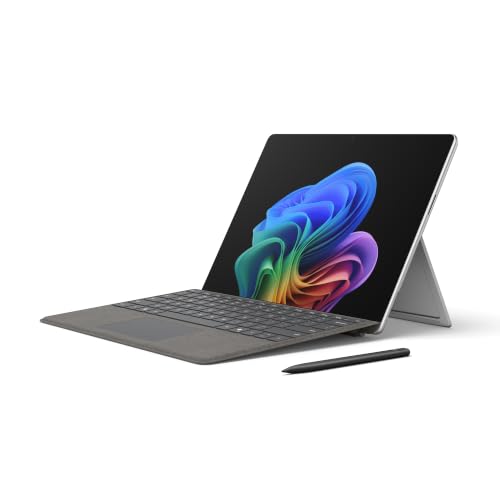
Most people assume that because it's a Surface, they need a dock with a Surface Connect port for the desk. You don't. The Surface Pro 13-inch has two USB-C ports with USB4 that handle charging, data and monitors, so an ordinary USB4 or Thunderbolt 4 dock is enough.
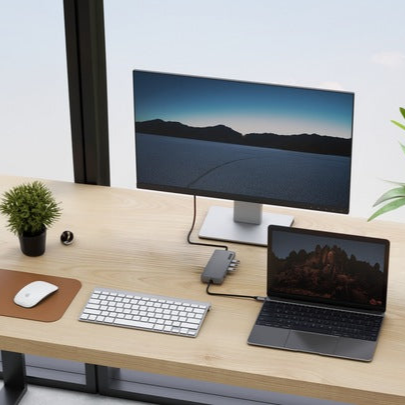
If you want two monitors, a keyboard, a network connection and charging over a single cable, get a Thunderbolt 4 or USB4 dock with its own power supply. If you have one monitor and modest needs, a USB-C hub will do.
At home, the best choice is a dock that stays on the desk and does everything at once. On the road, a small hub that fits in a bag pocket is handy. We cover this in more detail below.
What the USB4 ports in the Surface Pro 13 can do
According to Microsoft, the Surface Pro 13-inch 12th Edition (Snapdragon X2, launched in June 2026) supports one monitor up to 5120 x 2880 at 60 Hz or 3840 x 2160 at 120 Hz when connected directly. With two monitors, that's 4K at 60 Hz on each.
In practice, this setup is plenty for documents, spreadsheets and video calls. You can also connect a fast 4K 120 Hz monitor, but only as the single screen.
The Surface Connect port is still on the tablet, but you connect the dock to a USB4 port, not to that connector. With other cables and docks, it's the USB4 port that decides what you get for video and charging.
We have a separate article on monitors for the Surface Pro, so here we focus on what sits between the tablet and the screen.
Fun fact: The Surface Pro 13-inch 12th Edition can run three 4K monitors at once, while for the 11th Edition Microsoft lists two at most.
We picked the products in the boxes below by type: Thunderbolt 4 and USB-C docks with two video outputs, and a small hub with pass-through charging. Not every model is available in every country, so check what you see in your store.
Docking stations for Surface Pro 13 (2026) we recommend

1. UGREEN Revodok 10-in-1 USB-C dock with dual HDMI
USB-C hub · 2 x HDMI · Ethernet · pass-through charging
The best-selling hub of this type. Two HDMI ports, USB ports and Ethernet in a small body, with pass-through charging from a USB-C power adapter.
See UGREEN Revodok 10-in-1 USB-C dock with dual HDMI on Amazon →
Dock or hub: charging and number of monitors
The difference comes down to the power supply. A dock with its own power supply charges your tablet over the same cable that carries video and data. You plug in one connector and everything is on your desk.
A small hub without a power supply only does pass-through charging. You have to plug a USB-C charger into it, and the hub passes the power on to the tablet. It's a good choice if you already have a charger on your desk, and great for travel.
As for monitors, Windows doesn't have the limit you know from macOS. A dock or hub with two HDMI ports can show different images on two screens, because MST works in Windows. So you can keep a document on one monitor and email on the other, no tricks needed.
Thunderbolt 4 docks connect to two 4K monitors at 60 Hz. A standard USB-C dock usually gives you one 4K 60 Hz monitor, which limits your options if you plan a second screen. So for two monitors, look for a dock that clearly states Thunderbolt 4 or USB4.
Fun fact: Microsoft's dock charges the Surface at up to 96 W, even though its power supply is rated at 165 W, because the rest of the power goes to the dock's ports.
Our advice: for two monitors and a permanent setup, pick a Thunderbolt 4 dock with its own power supply. Keep a USB-C hub with pass-through charging for a single monitor or for trips.
How to connect it and what to watch for
Plug the dock into one of the two USB-C ports with USB4. The other port stays free, for a drive or a phone, for example.
Use the cable that came with the dock. A random USB-C cable may be charge-only and won't carry video, which then looks like a dock failure.
Connect monitors to the dock's HDMI or DisplayPort outputs, not to the tablet at the same time. Once connected, open the display settings in Windows and choose whether the image should be extended or duplicated. For a desk with two monitors, you'll usually want to extend.
If there's no picture, start with the cable and the port. Try the tablet's other USB4 port and check that the monitor is set to the right input.
Most common questions about docks for Surface Pro 13
Which dock for Surface Pro 13 (2026)?
For two monitors, choose a Thunderbolt 4 or USB4 dock with its own power supply, since it charges the tablet over a single cable. For a desk with one screen, a USB-C hub with pass-through charging is enough.
How many monitors can Surface Pro 13 run through a dock?
Through a Thunderbolt 4 dock, you can count on two 4K monitors at 60 Hz. Through standard USB-C, usually one 4K 60 Hz monitor. It all depends on what the dock itself can do, not just the tablet.
Does the Surface Thunderbolt 4 Dock work with Surface Pro 13?
According to Microsoft, this dock works with any computer with USB4 or Thunderbolt 4. The manufacturer also lists the Surface Pro 12th Edition with a Snapdragon processor among the devices it was designed for. Other Thunderbolt 4 docks work on the same principles.
Will a USB-C hub charge Surface Pro 13?
Yes, but only as pass-through, meaning you plug a USB-C charger into the hub. A hub without a power supply won't charge the tablet on its own. For everyday work at a desk, a dock with its own power supply is more convenient.
Docking station or Surface Connect?
You connect the dock to the USB4 port, not to Surface Connect. This lets you use docks from different brands, not just the one made for the Surface connector.
See also
- Best monitor for Surface Pro 12-inch and 13-inch - USB-C, one cable and how many screens
- Which keyboard for Surface Pro 13-inch (2026) - original or Bluetooth
- Which charger for Microsoft Surface Pro 13 (2026) - an adapter for the desk and travel
- Best stylus for Surface Pro 13 (2026) - Slim Pen 2 or an MPP alternative
Sources
- Microsoft Support: Supported external displays for Surface Pro - manufacturer page (support.microsoft.com)
- Microsoft Learn: Surface Thunderbolt 4 Dock - manufacturer page (learn.microsoft.com)
- Windows Central: Microsoft's new Snapdragon X2 Surface PCs are here - industry article (windowscentral.com)
- Tom's Hardware: Microsoft debuts Surface Pro and Surface Laptop with Snapdragon X2 - industry article (tomshardware.com)
- Petri: Microsoft launches new Surface Pro and Surface Laptop with Snapdragon X2 - industry article (petri.com)
- PhoneArena: Microsoft's 12th Gen Surface Pro official specs - industry article (phonearena.com)


Leave a comment
This site is protected by hCaptcha and the hCaptcha Privacy Policy and Terms of Service apply.