




As an Amazon Associate I earn from qualifying purchases.
Quick answer: our top pick is Samsung 990 PRO 1TB M.2 2280 NVMe SSD (M.2 2280 · NVMe PCIe 4.0 · 1 TB).
Best SSD for Raspberry Pi 500+? M.2 NVMe 2280 is the best choice
You keep installing libraries and downloading system images, until one evening Raspberry Pi OS tells you you're out of space. The stock drive is 256 GB, and bigger projects fill it fast. The easiest fix is to swap it for a larger M.2 NVMe drive in the 2280 format.
The 2280 format (22 x 80 mm) is the longest drive the internal slot accepts. It's also the most common M.2 length, so there's plenty to choose from and compatibility isn't a problem.
What's inside the Pi 500+
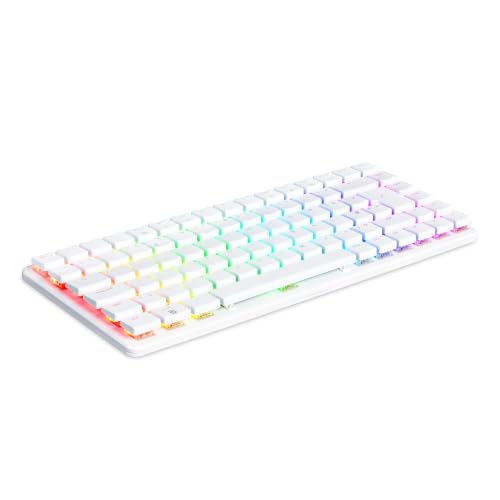
The Raspberry Pi 500+ is a computer built into a mechanical keyboard, with 16 GB of RAM. The internal M.2 slot holds a Raspberry Pi SSD 256 GB with Raspberry Pi OS preinstalled. The slot supports NVMe drives up to the 2280 format.
You swap the drive after opening the case with the tool that comes in the box. You don't need any extra accessories or soldering, just a quiet moment and some desk space.
Shorter drives, in the 2230 or 2242 format, will only fit in the slot if the case has a mounting point for that length. To avoid guesswork, buy a 2280 drive. It fits with no fuss.
Fun fact: The Pi 500+ is the first Raspberry Pi keyboard computer with an NVMe drive inside instead of just a microSD card.
We picked the drives to fit the slot in the Pi 500+: all of them are M.2 NVMe in the 2280 format, with more capacity than the stock 256 GB.
SSD drives for Raspberry Pi 500+ we recommend

1. Samsung 990 PRO 1TB M.2 2280 NVMe SSD
On saleM.2 2280 · NVMe PCIe 4.0 · 1 TB
One of the most popular M.2 NVMe 2280 drives. Samsung lists up to 7450 MB/s read speed on a PCIe 4.0 slot; in a device with a slower slot the drive runs slower, but works the same way.
How to move the system to a new drive, step by step
When you install a new drive, the computer has nothing to boot from, because Raspberry Pi OS stayed on the old one. So you prepare the system ahead of time on a microSD card. For that you need a second computer with a card reader.
- Save your important files. Copy your projects and documents from the old drive to a safe place before you remove it.
- Prepare the microSD card. Use Raspberry Pi Imager to write Raspberry Pi OS to it.
- Swap the drive. Shut down the computer, unplug the power, open the case with the included tool, and put an M.2 2280 drive in place of the factory one.
- Boot from the card. Insert the microSD card and turn on the Pi 500+.
- Install the system on the new drive. Use Raspberry Pi Imager to install the system or clone it to the new drive.
- Remove the card. Check that the computer now boots from the new drive, then restore your files.
If you're starting projects from scratch, a clean install is the simplest option. If you have a setup that would be a pain to rebuild, make a backup before the swap.
We have a separate article about a monitor for the Raspberry Pi 5 and Pi 500+, so if you need a screen too, check it out.
Fun fact: the Pi 500+ keyboard is mechanical, with low-profile Gateron KS-33 Blue switches, and the kit includes a keycap puller.
How many GB to choose for your projects
The factory 256 GB is enough for learning, scripts, and small projects. Trouble starts when you add large datasets, several system images, or your own archive of photos and videos.
Picture someone who starts a new project every weekend and hates cleaning up. After a few months they have a dozen copies of repositories, downloaded images and containers, and the system stops updating because there's no space left. With a bigger drive, this problem shows up much later, and you don't have to delete old stuff every week.
For most users, a 1 TB drive is the sensible step up. That's four times the factory 256 GB, so you'll fit the system, your projects, and plenty of room to grow. If your Pi 500+ is only for learning and simple tasks, you may not need to swap the drive at all.
Our advice: buy a 1 TB M.2 NVMe 2280 drive and prepare the system on a microSD card before the swap.
Common questions about the Pi 500+ drive
Which SSD for the Raspberry Pi 500+?
Your best bet is an M.2 NVMe drive in the 2280 format with more capacity than the factory one. It fits the slot with no guesswork about mounting. For most projects, 1 TB is a good choice.
Can you replace the drive in the Raspberry Pi 500+?
Yes. The M.2 slot is taken by the factory drive, but you can replace it with another NVMe drive. Just open the case with the tool included in the kit.
Which M.2 format fits the Raspberry Pi 500+?
The slot supports NVMe drives up to the 2280 format, which is 22 x 80 mm. 2230 and 2242 drives will fit only if the case has a mount for their length. The easiest choice is a 2280.
How do you move the system to a new drive in the Pi 500+?
Write Raspberry Pi OS to a microSD card and boot the computer from it. Then use Raspberry Pi Imager to install the system on the new drive or clone it. Copy your important files first.
How many GB is the drive in the Raspberry Pi 500+?
The factory Raspberry Pi SSD has 256 GB and comes with Raspberry Pi OS installed. It sits in the internal M.2 slot. If you need more space, you can replace it with a bigger one.
See also
- Best microSD card for Raspberry Pi 5 - A2 class and at least 32GB
- Best monitor for Raspberry Pi 5 and Pi 500+ - micro-HDMI, 4K and USB power
- Best SSD for Raspberry Pi 5 - M.2 HAT, 2230 drive and NVMe boot
Sources
- Raspberry Pi: Raspberry Pi 500+ product brief - manufacturer page (pip.raspberrypi.com)
- CNX Software: Raspberry Pi 500+ gets 256 GB NVMe SSD and 16 GB RAM - industry article (cnx-software.com)
- Hackster: Hands-on review of the Raspberry Pi 500+ - industry article (hackster.io)
- bret.dk: Raspberry Pi 500+ review - industry article (bret.dk)
- DigiKey: Raspberry Pi 500+ launches with 256GB NVMe SSD - industry article (digikey.com)


Leave a comment
This site is protected by hCaptcha and the hCaptcha Privacy Policy and Terms of Service apply.