


As an Amazon Associate I earn from qualifying purchases.
Quick answer: our top pick is Dell 27 Plus S2725HSM (27 inch · Full HD · HDMI · speakers).
Best monitor for Raspberry Pi 5? Any one with HDMI will do
Two micro-HDMI ports, each up to 4K at 60 fps. That's what the Raspberry Pi 5 can do, so an ordinary Full HD monitor won't come close to its limits. Get any monitor with an HDMI input and a micro-HDMI to HDMI cable, and you'll have a picture right away.
For learning, coding and typical projects, Full HD is plenty. The Raspberry Pi 500+ is a computer built into a mechanical keyboard, with 16 GB of memory and a 256 GB SSD, so all it needs to make a complete setup is a screen.
Below, you'll see how to connect a monitor, how to power it and when it makes sense to go for a higher resolution.
Video outputs on the Raspberry Pi 5 and Pi 500+
Both computers have two micro-HDMI ports, and each one supports up to 4K at 60 fps. The Raspberry Pi 5 also supports HDR, if your monitor can display it.
Connect your main monitor to the port marked HDMI0. A second screen goes into the other port, so a two-monitor desk needs no adapter or hub.
Picture this: you order a monitor, and the HDMI cable from your drawer doesn't fit the port on the Raspberry Pi. The project sits idle until the right cable arrives. So add a micro-HDMI to HDMI cable to your cart right away, together with the monitor.
Power goes into the USB-C port, which isn't used for video. The picture always goes through micro-HDMI.
Fun fact: no model in the whole Raspberry Pi family sends video over USB-C (DisplayPort Alt Mode), even though many laptops do.
We picked the monitors below by HDMI input and audio: they include portable screens and larger desktop ones, in Full HD and 1440p.
Our recommended monitors for Raspberry Pi 5 and Pi 500+

1. Dell 27 Plus S2725HSM
27 inch · Full HD · HDMI · speakers
A large desktop monitor with an HDMI input and 2 x 3 W speakers, so the sound from the Raspberry Pi travels over the same cable as the picture. The stand is height adjustable.
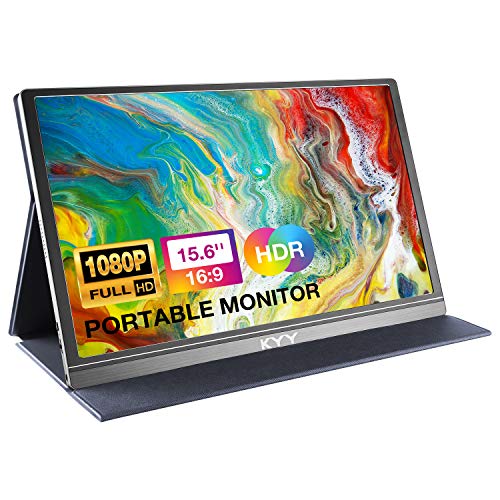
2. KYY 15.6" FHD portable monitor
15.6 inch · Full HD · mini HDMI · speakers
Portable Full HD monitor with a mini HDMI input, speakers and a cover that doubles as a stand. For the Raspberry Pi you need a micro-HDMI cable with an end that fits the monitor's input.
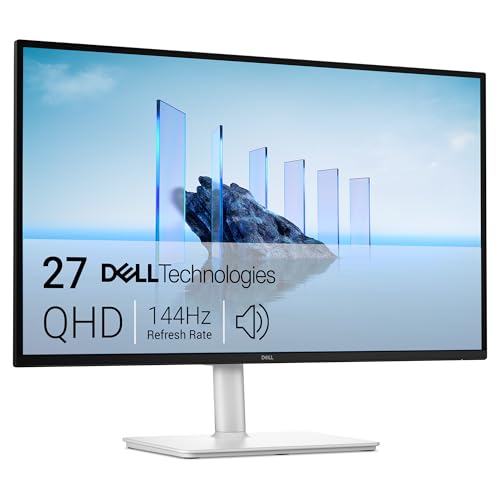
3. Dell 27 Plus S2725DSM
27 inch · 1440p · HDMI · speakers
1440p monitor with HDMI and 2 x 3 W speakers. More room for code and terminal windows than on a Full HD screen.
Portable or desktop monitor, and how to power it
A portable monitor, usually 15-16 inches, makes sense when your project moves between the desk and the workshop, or when you don't have room for a big screen. A light display fits in a backpack next to your computer. The downside is simple: a small screen means less room for windows.
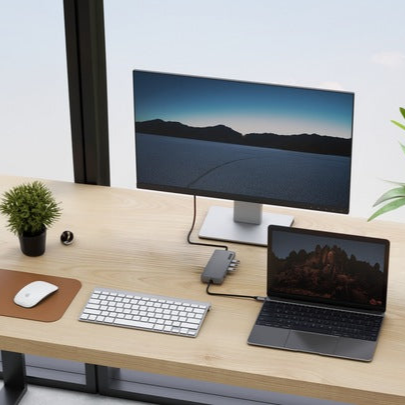
A desktop monitor gives you more space and usually comes with an adjustable stand. For everyday coding, a bigger picture is easier on the eyes, and the Raspberry Pi 500+ with its built-in keyboard fits well at a permanent desk setup.
On portable monitors, use the HDMI input, not USB-C. Since the Raspberry Pi won't send video over USB-C, that port would only be useful for power. Power the monitor from a separate charger, and the computer won't have to share its power budget.
Desktop monitors have their own power supply or a cable to the outlet, so there's nothing to figure out. Monitors usually need their own power, so expect one more cable going to the wall.
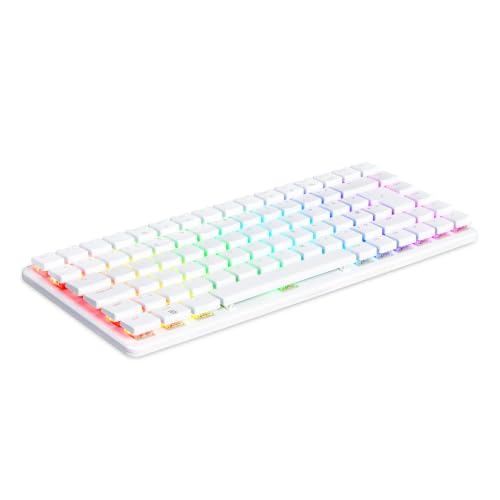
Fun fact: The Raspberry Pi 500+ has a mechanical keyboard with low-profile Gateron KS-33 Blue switches, and a keycap puller comes in the box.
Sound and resolution: speakers, Full HD or 1440p
Sound from the Raspberry Pi travels over HDMI along with the picture. A monitor with built-in speakers saves you separate speakers and an extra cable. For tutorial videos, music while you work and system sounds, that's enough.
Full HD is a good starting point: a sharp picture for learning, a code editor and a browser, without paying extra for resolution you won't use. If you work with several windows at once, for example an editor, a terminal and documentation, a 1440p monitor gives you noticeably more room for code.
You can connect a 4K monitor too, since the Raspberry Pi 5 and 500+ have outputs for it. On a small screen, though, the difference is hard to see, and at 27 inches Full HD and 1440p are plenty for comfortable work.
Before you start setting up the system, check out our separate article on the microSD card for Raspberry Pi 5.
If you're buying just one: a Full HD monitor with an HDMI input and speakers, plus a micro-HDMI to HDMI cable.
Frequently asked questions about monitors for Raspberry Pi
Which monitor for Raspberry Pi 5?
Any monitor with an HDMI input. Full HD is enough for learning and projects. Go for 1440p if you want more room for code and terminal windows. Built-in speakers are handy, because the sound travels over the same cable as the picture.
Which cable does a Raspberry Pi 5 need for a monitor?
A micro-HDMI to HDMI cable. A regular HDMI cable won't work, because the ports on the computer are smaller. If your monitor has a mini HDMI port, you need a cable with the right connector on the monitor end.
Can the Raspberry Pi 5 send video over USB-C?
No. The USB-C port is for power only, and video goes out through the two micro-HDMI ports. This applies to the Raspberry Pi 500 and 500+ as well.
Can the Raspberry Pi 5 run two monitors?
Yes. It has two micro-HDMI ports, and each supports up to 4K. Connect your main monitor to the HDMI0 port and the second one to the other port.
Can you power a monitor from the Raspberry Pi?
Usually not, because monitors need their own power. It's best to plug a portable monitor into a separate charger.
Sources
- Raspberry Pi: Raspberry Pi 5 - manufacturer page (raspberrypi.com)
- Raspberry Pi Documentation: Getting started - manufacturer page (raspberrypi.com)
- Tom's Hardware: Raspberry Pi Monitor review - industry article (tomshardware.com)
- Hackster: Hands-on review of the Raspberry Pi 500 and Raspberry Pi Monitor - industry article (hackster.io)
- Bret.dk: Official Raspberry Pi 15.6-inch monitor - industry article (bret.dk)

Leave a comment
This site is protected by hCaptcha and the hCaptcha Privacy Policy and Terms of Service apply.