

As an Amazon Associate I earn from qualifying purchases.
Quick answer: our top pick is WD Purple 4TB (3.5 inch · 4 TB · for continuous recording).
Best hard drive for Reolink Home Hub Pro? A 3.5-inch surveillance drive, up to 16 TB
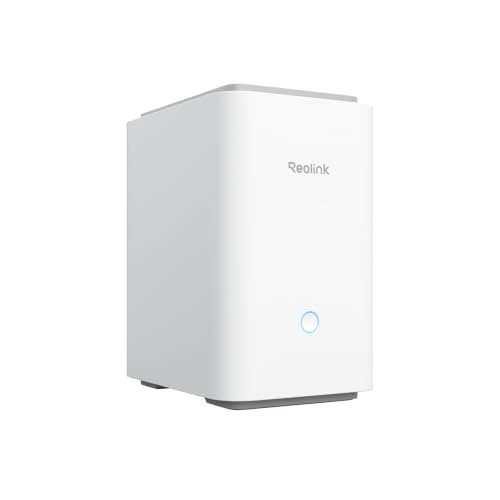
Some people think 2 TB is the ceiling for this hub. It isn't. The Reolink Home Hub Pro takes one 3.5-inch HDD with a capacity of up to 16 TB.
Your best choice is a surveillance-class drive. Reolink publishes a list of compatible drives. It covers surveillance models from 2 to 16 TB and a few server-class drives. You can pick other models too, but only from those two classes.
Choose the capacity based on the number of cameras and how long you want to keep recordings. The more cameras and the longer the history, the bigger the drive you need.
The version with a 2 TB drive or without a drive
The Home Hub Pro comes in two versions: with a 2 TB drive and without a drive. The version with a drive is ready as soon as you plug it in, so it's an easy start with a few cameras. You can add capacity later by swapping in a bigger drive.
The version without a drive needs a 3.5-inch SATA drive, up to 16 TB. Pick it if you already know you need more capacity, or if you don't want to pay for a drive you won't use.
Before you order, check the seller's description to see exactly what's in the box. The contents can vary by listing.
If you only buy one thing: a 3.5-inch surveillance-class drive, with a capacity matched to your number of cameras.
Below you'll find 3.5-inch surveillance drives we picked by type of use and availability in the US.
Drives for the Reolink Home Hub Pro we recommend

1. WD Purple 4TB
3.5 inch · 4 TB · for continuous recording
A 3.5 inch drive designed for continuous recording from cameras. WD rates the series for workloads up to 180 TB per year.
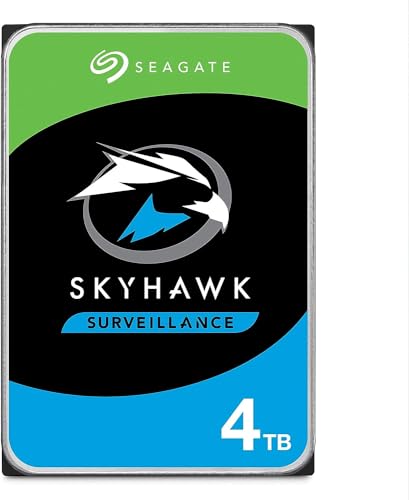
2. Seagate SkyHawk 4TB
3.5 inch · 4 TB · for surveillance
A Seagate surveillance drive, 4 TB. Reolink lists the SkyHawk 4 TB models among its verified drives.
Why a surveillance drive and not a regular one
The recorder with cameras writes video nonstop, at all hours. Surveillance drives are built for 24/7 operation and heavy writing. A regular PC drive has shorter duty cycles, because a computer doesn't record around the clock.
Western Digital rates its surveillance series for workloads of up to 180 TB per year. That shows the scale: a recording drive has to be ready for it from the start.
Take a simple example. There's a drive from an old computer in your drawer, and you just bought a recorder without a drive. It's tempting to pop it in. But the recorder will format it and erase all the data, so your old photos and documents will be gone. A regular drive also isn't built for continuous recording.
That's why you can't move a drive from another device along with its recordings. If you need something on it, make a backup first.
Fun fact: Reolink advises against using laptop drives and home computer drives in the recorder, because they may perform worse and have compatibility problems.
Replacing the drive step by step and the microSD card
Replacing the drive is easy and needs no special skills. According to the Reolink manual, do this:
- turn off the recorder and unplug it from power,
- open the bay cover,
- take out the bracket,
- screw the drive onto the bracket,
- slide the bracket with the drive back in and close the cover.
After you turn it on, the recorder will format the new drive. Recordings from the old drive won't transfer automatically, so if they matter, copy them first.
Fun fact: Reolink describes a standard drive swap as sliding out the bracket and removing a few screws.
The Home Hub Pro also accepts a microSD card of up to 512 GB. The slot is meant for saving to the card, though, not for continuous recording alongside the drive. For everyday surveillance you still need a 3.5-inch drive.
We have a separate article about memory cards for Reolink cameras themselves.
Frequently asked questions about the Home Hub Pro drive
Which drive fits the Reolink Home Hub Pro?
A 3.5-inch SATA HDD, ideally a surveillance-class or server-class drive. Reolink has a list of compatible models that's worth checking before you buy. Pick the capacity based on the number of cameras.
Does the Reolink Home Hub Pro come with a drive?
It depends on the version. There's a variant with a 2 TB drive and a variant without a drive. Before you buy, check the seller's description to see what's included.
How many TB does the Reolink Home Hub Pro support?
One drive of up to 16 TB. You can't install multiple drives, so if you want more space, just pick a larger model.
Can I use a regular computer drive?
Physically, yes, but it's a bad idea. A regular drive has shorter duty cycles, and the recorder writes nonstop. On top of that, the recorder will format the drive and erase everything that was on it.
Does the Home Hub Pro work with a microSD card?
Yes, it supports cards of up to 512 GB. The slot is meant for saving to the card, though, not for continuous recording alongside the drive. Your main recordings should still go to the 3.5-inch drive.
See also
- Best microSD card for Reolink camera - capacity limit per model and Home Hub
- Best solar panel for Reolink cameras - 3 W, 6 W or 12 W by model
- Best hard drive for eufy HomeBase 3 and Tapo H500 - 2.5-inch SATA up to 16TB
Sources
- Reolink: How to choose HDDs for your Reolink device - manufacturer page (support.reolink.com)
- Reolink: How to install a hard drive in Home Hub Pro - manufacturer page (support.reolink.com)
- Reolink: Home Hub Pro - manufacturer page (reolink.com)
- Smart Home Compared: Reolink Home Hub Pro - industry article (smarthomecompared.com)
- Western Digital: Surveillance storage - industry article (westerndigital.com)
- Montavue: Surveillance grade vs desktop hard drives - industry article (montavue.com)
- How-To Geek: What is a surveillance or NAS hard drive - industry article (howtogeek.com)
- Reolink: Home Hub vs Home Hub Pro - industry article (reolink.com)

Leave a comment
This site is protected by hCaptcha and the hCaptcha Privacy Policy and Terms of Service apply.