

As an Amazon Associate I earn from qualifying purchases.
Quick answer: our top pick is Anker 333 USB-C / USB-C, 90 cm (2x) (USB-C · 90 cm · 2-pack).
Why is Android Auto not connecting? Most Common Causes
Most often, the culprit is the USB cable you use in your car. It might be damaged, too long, or designed exclusively for charging without data transfer support.
Another common reason is extension cables and port hubs, which Google advises against using with Android Auto. If the physical connection works properly, the problem usually lies in a frozen car infotainment system or incorrect settings on your phone.
It is best to start troubleshooting with the simplest steps. Check the cable, remove unnecessary adapters, and if that does not help, restart the car radio and clear the list of saved vehicles on your smartphone.
USB Cable and Port: What to Look For
Google recommends that the cable for Android Auto be less than 1 meter long.
Make sure your cable supports data transfer. Many cheap cables only have power lines inside, meaning the phone charges normally, but the car does not detect it at all. It is best to test the original cable that came with your phone or purchase a model compliant with USB-IF standards.
The choice of connector depends on your car. In newer models with a small port, you need a USB-C to USB-C cable, while older models with a standard rectangular port require a USB-A to USB-C cable. If Android Auto worked fine for a few months and suddenly stopped, Google advises simply replacing the cable with a new one.
Fun fact: A USB 2.0 transfer speed of 480 Mb/s is entirely sufficient for wired Android Auto to work. Buying an expensive USB 3.x cable with a bandwidth of 20 Gb/s or 40 Gb/s is not required and will not improve the stability of your connection in any way.
Below you will find proven cables and adapters that we selected based on compliance with standards and suitable length for a car.
Cables and adapters that fix the Android Auto connection
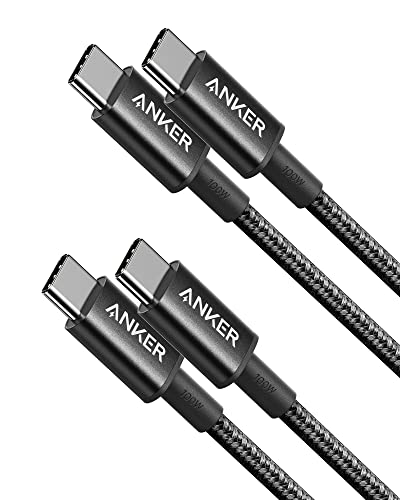
1. Anker 333 USB-C / USB-C, 90 cm (2x)
USB-C · 90 cm · 2-pack
For cars with a USB-C port. It is shorter than 1 m (3 ft), as Google recommends, and carries data at USB 2.0 speed, which is all Android Auto needs. The second cable in the pack can stay at home.

2. Anker USB-A / USB-C, 90 cm
USB-A · 90 cm · braided
For older cars with the rectangular USB-A port. It is braided, short and carries data, not just power, so Android Auto starts without trouble.

3. AAWireless Two
wireless Android Auto · settings app
The pricier wireless option from a European maker. Its app lets you tweak the connection and install updates. It also needs a car with factory wired Android Auto.
Phone and car settings that resolve errors
Before you start changing advanced options, check whether the Android Auto feature is enabled in your multimedia system menu. Next, restart the car's multimedia system; you will find instructions on how to do this in your car manual.
If you use an aftermarket radio, such as Pioneer or Kenwood, visit the manufacturer's website. Check if a newer radio firmware version is available and install it.
When your phone connects to another car or you have recently changed vehicles, clear the connection memory. Unplug the phone from the cable, go to Settings, then Connected devices, Connection preferences, Android Auto, and Previously connected cars. In the top right corner menu, select Forget all cars, and then reconnect your phone.
Also, keep technical requirements in mind. Your phone must run on Android 11 or newer and have an active mobile data plan, although Google recommends using the latest available software version.
Fun fact: Android Auto is built directly into your phone's operating system. You do not need to install it manually or look for it as a standalone app in the Google Play store.
Wireless adapter: when it helps and when it does not
Wireless adapters, such as the Motorola MA2 or AAWireless, are permanently plugged into the car's USB port. Thanks to them, your phone connects to the car automatically via a wireless network as soon as you get inside.
This is a great solution if your cable constantly bends, disconnects over bumps, or simply clutters the center console. However, remember that such an adapter will only work in cars that support wired Android Auto from the factory.
If your car has no factory support for this system at all, no wireless adapter will launch Android Auto on the screen. This type of device is merely a bridge replacing a traditional cable, not a standalone onboard computer.
Frequently asked questions about Android Auto issues
Why does Android Auto disconnect while driving?
The first suspect is the cable: worn out, longer than 1 meter, or connected via an extension cord or USB hub, which Google advises against. If Android Auto used to work and stopped, Google recommends replacing the cable. It is also worth making sure the cable meets USB-IF standards.
Does every USB-C cable work with Android Auto?
No, because some cables available in stores are charge-only, lacking data transfer lines. Android Auto requires a cable that transfers data at least in the USB 2.0 standard. Short cables bundled with the phone or certified cables under 1 meter in length work best.
How to reset the Android Auto connection with the car?
Disconnect your phone from the car and open your smartphone's system menu. Go to Settings, Connected devices, Connection preferences, Android Auto, and Previously connected cars. In the top right corner, open the menu, tap Forget all cars, and restart your car radio before reconnecting the devices.
Will a wireless adapter fix cable issues?
Yes, if the reason for disconnection was physical cable damage or a loose port on your smartphone, the adapter eliminates the need to constantly plug in the phone. The prerequisite, however, is having a car with fully functional, factory wired Android Auto. The adapter will not help if the error lies in the radio's software or the car's lack of support for the system.
Why does Android Auto work in one car but not in another?
The other car might have outdated radio firmware; for aftermarket radios, such as Pioneer or Kenwood, Google recommends checking for updates on the manufacturer's website. The problem may also stem from saved, outdated connection profiles on your smartphone. In this case, clearing the list of vehicles in Android Auto settings and pairing the phone with the new car again will help.
Guides that help you choose
- Which USB cable for Android Auto? We recommend a good cable for Android Auto
- How to add CarPlay and Android Auto to an older car: head unit, screen or adapter
- Which cable for Apple CarPlay? The best choice for iPhone and cars
Sources
- Google: My Android Auto app isn't working - manufacturer page (support.google.com)
- Google: Set up Android Auto - manufacturer page (support.google.com)
- Android Central: The best USB-C cables for Android Auto - industry article (androidcentral.com)
- Jalopnik: Why picking a good cable for Android Auto is complicated - industry article (jalopnik.com)
- BGR: Best USB-C cables for Android Auto - industry article (bgr.com)

Leave a comment
This site is protected by hCaptcha and the hCaptcha Privacy Policy and Terms of Service apply.