



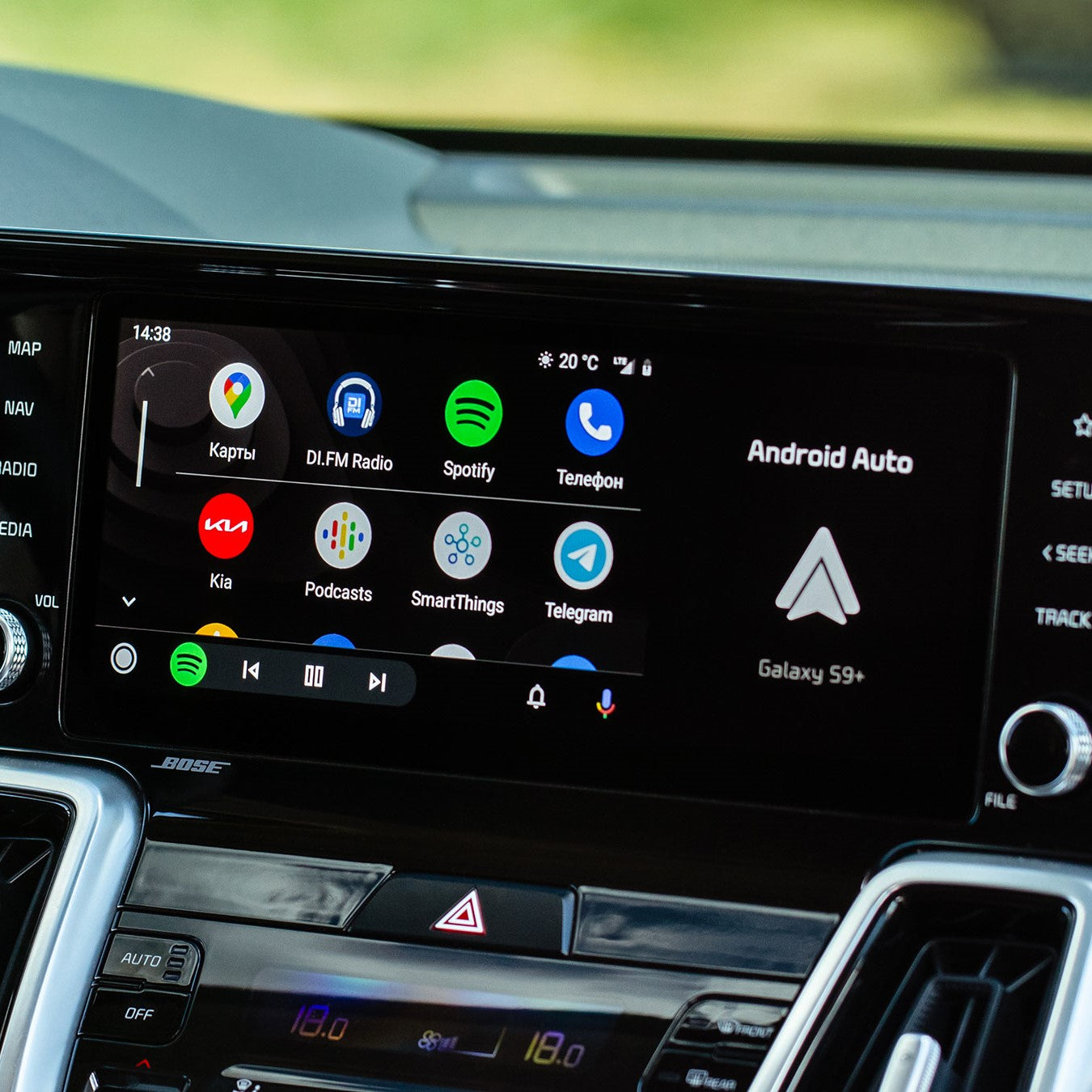
Choosing the best USB cable for Android Auto is a key decision that affects connection quality, charging speed and data transfer. In this article, we’ll outline the most important factors to consider when tackling the question “which USB cable for Android Auto”, and we’ll recommend a good USB cable.
Why is a good USB cable important for Android Auto?
A high-quality USB cable is the foundation of stable and reliable communication between your smartphone and the car system. Fast data transfer and cable durability are crucial, especially in changing in-car conditions where the cable may be subject to intensive use.
Factors that affect the choice of USB cable for Android Auto
- Cable length: A cable that is too long can cause voltage drops and signal interference. The recommended length is no more than 1.8 m.
- USB standard: USB 3.x cables and newer offer faster data transfer, which ensures a more stable connection.
- Build quality: Choose cables with CE, FCC, RoHS certifications, which guarantee durability and reliability.
- Fast-charging support: The cable should support fast charging, which is useful on longer car journeys.

Differences between wired and wireless Android Auto
You can run Android Auto in wired or wireless mode, but each option has its pros and cons.
Wired Android Auto – pros and cons
✅ Advantages:
- More stable connection – no interference or dropouts in transmission.
- Faster data transfer – crucial for smooth app performance.
- The ability to use Android Auto and charge your phone at the same time.
- A good USB‑C cable provides fast data transfer (20 Gbps) and supports fast charging.
❌ Drawbacks:
- Having to plug in a cable every time.
- Limited phone mobility while driving.
- Wear of the USB‑C port in the phone.
Wireless Android Auto – pros and cons
✅ Advantages:
- No need to plug in a cable – greater convenience.
- The ability to freely use your phone after leaving the car.
- No risk of damaging the phone’s USB port.
❌ Drawbacks:
- Higher battery consumption – the phone discharges faster.
- You’ll need a compatible infotainment system or an additional dongle for wireless Android Auto.
- Risk of interference and transmission delays.
- No fast charging – wireless Android Auto does not allow fast charging like via a USB‑C cable for Android Auto.

The most common mistakes when choosing a cable
Choosing the right USB cable for Android Auto is key to stable system performance. Many people make mistakes that lead to connection issues.
❌ Buying charge‑only cables without data transfer support
Some cheap USB cables are for charging only and do not support data transfer, which is why Android Auto doesn’t work.
📌 How can you avoid this error?
✔ Choose a good USB cable for Android Auto that supports data transfer (20 Gbps) and fast charging.
✔ Avoid cables without USB 3.x or USB 4 markings – ensure top-quality transmission.
✔ Make sure the cable supports both charging and data transfer.
❌ Choosing cables that are too long or too cheap
Cable length affects connection stability.
Cables that are too long (over 2 m) can cause voltage drops and interference.📌 Which cable should you use?
✔ 0.5 m – Ideal for short distances when the phone is close to the USB port.
✔ 1 m – The best compromise between convenience and connection stability.
✔ 2 m – A longer option, but it’s worth choosing a high-quality cable.
✔ Braided DEKO cables are more resistant to damage and temperature.
Which USB cable for Android Auto? Our tips

- 0.3 m – The shortest, but useful, especially when the phone needs to be very close to the USB-C port.
- 0.5 m – A short cable ideal for the car, offering fast data transfer and support for fast charging.
- 1 m – A universal length that ensures convenient use and high data transfer speeds.
- 2 m – A longer cable that, despite its length, maintains high data transfer quality

- 0.5 m and 1 m: An advanced cable that additionally offers transfer speeds of up to 40 Gbps and charging support up to 240 W. Ideal for 4K or 8K video transmission. It will come in handy not only in the car.
Most frequently asked question (FAQ):
How to fix Android Auto issues?
1. Android Auto doesn’t start or keeps searching for a connection
❓ "I connect my phone via USB cable, but Android Auto doesn’t launch automatically. The phone detects the car, but after a moment the connection drops."
✅ Solutions:
- Check your phone settings – go to Settings > Connected devices > Android Auto and make sure the app is enabled.
- Change the USB port in the car – not all of them support Android Auto.
- Try a different USB cable – some cables are charge‑only and don’t support data transfer.
- Clear the app cache – in your phone’s settings you’ll find an option to delete temporary data, which may help.
- Connect the phone with a cable, even if you want to use the wireless version – the initial setup often works better over a cable.
2. Android Auto keeps disconnecting
❓ "Everything works, but after a few minutes Android Auto disconnects and I have to unplug and reconnect the phone."
✅ Solutions:
- Check your USB cable – low-quality cables may struggle to maintain a stable connection. A good cable for Android Auto will ensure uninterrupted transmission.
- Change the cable length – a shorter cable (1 m instead of 2 m) reduces the risk of signal interference.
- Check the USB port in the car – if USB charging works but Android Auto keeps disconnecting, the port may have an issue with data transfer.
- Avoid using USB extension cables – they can cause signal interference.
3. Android Auto stops working when it’s cold outside
❓ “When the temperature drops, Android Auto starts rebooting and freezing. After the car interior warms up, it works normally.”
✅ Solutions:
- Use a temperature-resistant cable – some cables stiffen in frost, which can cause connection loss. We recommend braided ones.
- Connect the phone only after starting the car – the infotainment system may detect the device better once it has fully booted.
- If you’re using a long USB cable, try a shorter one – longer cables can be more prone to issues at low temperatures.
4. Android Auto works, but there’s no sound
❓ "The app launches, but there’s no sound from music or navigation."
✅ Solutions:
- Set the correct audio source in the car – in some models you need to manually switch to Android Auto.
- Check the media volume on your phone – make sure it’s not muted.
- Unplug and reconnect the Android Auto cable – damaged wires can disrupt audio signal transmission.
- If the sound cuts out when using Bluetooth, try connecting your phone with a cable – many users report that a USB Android Auto cable eliminates this issue.
5. The new phone won’t connect to Android Auto
❓ “Everything used to work, but after switching to a newer phone, Android Auto won’t start.”
✅ Solutions:
- Uninstall and reinstall the Android Auto app – some phones come with older preinstalled versions that can cause errors.
- Check the app permissions – in your phone’s settings, grant all required permissions for Android Auto.
- Try a different Android Auto USB cable – some older cables may not support newer data transfer standards.
- Enable “USB debugging” in the phone’s developer options – this may help the infotainment system recognise the device.
6. Android Auto shows “Check your phone”, and the phone says “Check your car”
❓ “I connect the phone, but the system doesn’t go any further – the car asks for confirmation on the phone, and the phone asks for confirmation in the car.”
✅ Solutions:
- Connect your phone with a cable – Android Auto works best when you use an Android Auto cable instead of wireless connectivity.
- Try a different USB port in the car – if the device is not recognized, switching ports may help.
- Reset Android Auto settings – in the app options, select “Restore factory settings.”
Summary: Why is a USB cable the best choice for Android Auto?
🔵 Android Auto is more stable over cable than over Wi‑Fi.
🔵 You can’t get both fast charging and high‑speed data transfer at the same time in wireless mode.
🔵 A wired connection supports fast charging, which is crucial on long trips.
🔵 Android Auto setup works best when the phone is connected via USB cable.
👉 If you want to avoid connection issues, choose a USB Android Auto cable and enjoy smooth system performance!
Źródła:
- More information about USB cables
- How to choose a USB cable

Leave a comment
This site is protected by hCaptcha and the hCaptcha Privacy Policy and Terms of Service apply.