

As an Amazon Associate I earn from qualifying purchases.
Quick answer: our top pick is UGREEN SD 4.0 USB-C card reader (UHS-II) (USB-C · SD 4.0 · up to 312 MB/s · SD and microSD).
Best SD card reader for iPhone 18 Pro? Go for USB-C with UHS-II
A UHS-II card reads at up to 312 MB/s, while a UHS-I-only reader holds it back to around 104 MB/s. In practice, photos and videos from a camera or drone can move to your phone up to three times faster if the reader matches the card.
For fast cards, get a reader with a USB-C plug that says UHS-II or SD 4.0 right in the listing. For regular UHS-I cards, a basic USB-C reader is enough.
If you have a UHS-II card but a UHS-I reader, nothing bad happens. The card works normally, just slower, because the reader ignores its second row of pins.
The USB-C port on the iPhone 18 Pro supports USB 3 at up to 10 Gb/s. Apple notes that you need a cable with that bandwidth for full speed, so with readers on a cable, check what kind of cable it is. Check that the cable supports USB 3 at 10 Gb/s.
UHS-I or UHS-II: when the difference really matters
You'll notice the difference with large batches of data. After a full day of shooting RAW photos, or after recording drone footage across several cards, every minute spent copying files is time between you and your edited material. That's when a UHS-II reader makes sense.
If you mostly shoot JPEGs, copy short clips to your phone, or have an older UHS-I card, a faster reader won't speed anything up. Transfer speed is always limited by the slowest part: the card or the reader.
How can you check? Look at the card. A UHS-II card has a second row of pins on the back. In the reader's listing, look for UHS-II or SD 4.0. If the seller doesn't say, assume it's UHS-I.
Fun fact: 312 MB/s from a UHS-II card needs only about 2.5 Gb/s, so even the 10 Gb/s port on the iPhone has plenty of headroom.
We picked USB-C readers for the iPhone in two groups: fast ones with UHS-II support and simpler ones for UHS-I cards. They include models for SD cards only and models for SD and microSD together.
If you're buying just one: get a USB-C reader clearly marked UHS-II or SD 4.0, because it will handle both fast and regular cards.
SD card readers for iPhone 18 Pro we recommend

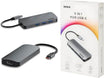
1. UGREEN SD 4.0 USB-C card reader (UHS-II)
USB-C · SD 4.0 · up to 312 MB/s · SD and microSD
Reader with USB-C and SD 4.0, meaning it supports UHS-II cards. UGREEN states read speeds of up to 312 MB/s.
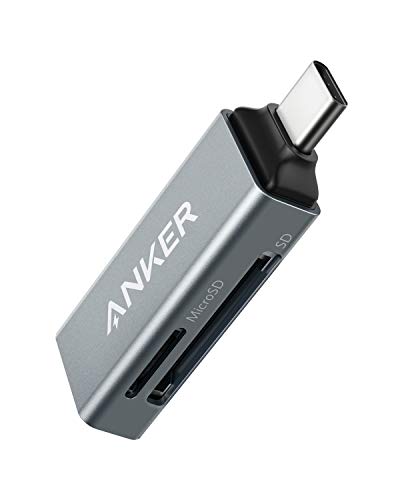
2. Anker 2-in-1 USB-C card reader
USB-C · SD and microSD · two cards
Small Anker reader for SD and microSD cards. Standard UHS-I speed, so it is enough for photos and short videos.

3. UGREEN 2-in-1 USB-C and USB-A card reader
USB-C and USB-A · SD 3.0 · SD and microSD
Reader with two connectors: USB-C for phone and tablet, USB-A for an older computer. UHS-I speed.

4. UGREEN SD 3.0 USB-C card reader
USB-C · SD 3.0 · up to 170 MB/s
Simple USB-C reader for SD and microSD. UGREEN states up to 170 MB/s. Enough if you don't have UHS-II cards.
How to copy photos from an SD card to your iPhone, step by step
It only takes a moment and you don't need to install anything. You can do it two ways: through Photos or through Files.
- Plug in the reader. Put the card in the reader and connect it to your phone's USB-C port.
- Photos. The Photos app opens the Import tab. You can import everything or pick only the files you want on your phone.
- Files. You can also see the card's contents in the Files app and in other apps that support external storage. This is handy when you want to send footage straight to an editor.
Sometimes a file is in a format iOS can't play. You won't be able to view it on your phone, but you can still import it and open it later on a computer. So a successful import doesn't always mean the preview will work.
Recording video straight to an external drive is a different topic. We cover it in a separate article about SSDs.
Card formats and what won't work
Your phone reads storage with a single data partition formatted as APFS, HFS+, exFAT, FAT32, or FAT. Cards from cameras usually use exFAT or FAT32, so they open without any trouble.
NTFS isn't on that list. If you once formatted the card as NTFS on a Windows computer, your iPhone may not open it. The easiest fix is to copy the data to a computer and format the card in your camera.
On iPad there's a small difference: since iPadOS 15, the Files app can read NTFS drives, but only in read-only mode. You can copy files, but you can't edit or delete them.
A standard SD reader also won't accept CFexpress cards. Readers with a CFexpress Type B slot are a separate category of gear, made for filmmakers.
Fun fact: the iPhone 18 Pro goes up to 2 TB of storage, but ProRes 4K120 still calls for an external drive.
iPhone 18 Pro SD card reader: frequently asked questions
Can you connect an SD card to the iPhone 18 Pro?
Yes, with a USB-C reader. Apple lists the iPhone 18 Pro and 18 Pro Max in the compatibility list for its reader, and you can copy photos and videos from the card to your phone with the adapter.
UHS-I or UHS-II reader for the iPhone 18 Pro?
For UHS-II cards, get a UHS-II reader so you get their full speed. For regular UHS-I cards, a simpler reader is enough. A UHS-II card in a UHS-I reader will also work, just more slowly.
How do you copy photos from an SD card to an iPhone?
Plug the reader with the card into the USB-C port and open the Photos app. In the Import tab, select everything or just the files you want. You can also use the Files app instead.
What SD card format does the iPhone read?
Cards with a single partition formatted as APFS, HFS+, exFAT, FAT32, or FAT. You'll most often run into exFAT and FAT32, which work without problems. NTFS isn't supported.
Does the same reader work with an iPad and a Mac?
Yes, a USB-C reader also works with an iPad that has a USB-C port and with a Mac. One purchase covers all three devices.
Sources
- Apple: iPhone 18 Pro Technical Specifications - manufacturer page (apple.com)
- Apple Support: Import and export photos to your iPhone or iPad using Apple camera adapters - manufacturer page (support.apple.com)
- Apple Support: Connect external storage devices to iPhone - manufacturer page (support.apple.com)
- Apple: USB-C to SD Card Reader, lista zgodnych urzadzen - manufacturer page (apple.com)
- CineD: Apple iPhone 18 Pro and 18 Pro Max Announced - industry article (cined.com)
- MacRumors: iPadOS 15 Files App Gains NTFS Support - industry article (macrumors.com)
- PhotoWorkout: Best SD Card Readers for Photographers (2026) - industry article (photoworkout.com)

Leave a comment
This site is protected by hCaptcha and the hCaptcha Privacy Policy and Terms of Service apply.