

As an Amazon Associate I earn from qualifying purchases.
Quick answer: our top pick is Dell 27 Plus S2725QC (27 inches · 4K · USB-C 65 W).
Best Monitor for iPad Pro M5? The simplest choice is 27 inches, 4K and USB-C
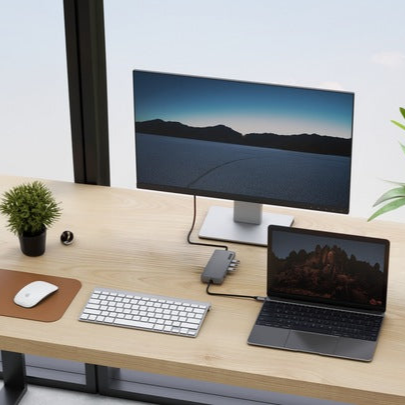
The safest choice is a 27-inch monitor with 4K resolution and a USB-C input. One cable carries the picture and charges the iPad at the same time, so you don't need a separate power adapter on your desk.
A monitor like this is well within the tablet's capabilities, with room to spare. If you want more, the iPad Pro M5 can even handle 5K at 120 Hz. Below we describe exactly what it supports, how to connect it, and when to choose a different resolution.
What the iPad Pro M5 supports on the monitor side
The iPad Pro with M5 (in 11-inch and 13-inch versions) has a Thunderbolt / USB 4 port with charging and DisplayPort support. Bandwidth is up to 40 Gb/s in Thunderbolt 3 and USB 4, and up to 10 Gb/s in USB 3. For you, this means that this single port is enough for video, power and external drives.
You can connect one external monitor. According to Apple, the iPad Pro supports it at resolutions up to 6K at 60 Hz. So you can't connect two large screens at once, but the one you do connect gets very high image quality.
A 120 Hz refresh rate on an external display is new in the M5. MacRumors points out that, together with Adaptive Sync, it gives smoother scrolling and gaming with lower latency. The built-in 13-inch display itself has ProMotion 120 Hz (Cult of Mac).
Fun fact: The iPad Pro M5 supports an external 5K monitor with a 120 Hz refresh rate. That is what Apple states in its technical specifications.
We selected 27-inch monitors in 4K, 5K and 1440p with USB-C, plus two portable models, based on the manufacturers' descriptions.
Recommended monitors for iPad Pro M5

1. Dell 27 Plus S2725QC
27 inches · 4K · USB-C 65 W
A 4K monitor with a USB-C input. One cable carries the picture from your iPad and charges it at up to 65 W, faster than the 20 W adapter from the box. It refreshes at 120 Hz, but the iPad Air will send it 60 Hz at most.

2. LG UltraFine 27UP850K
27 inches · 4K · 95% DCI-P3 · USB-C approx. 90 W
A 4K monitor with 95% DCI-P3 according to LG, good for photos and graphics from your iPad. USB-C carries the picture and charges the tablet, and next to it are two HDMI ports and a DisplayPort for other devices.

3. Apple Studio Display (2026)
27 inches · 5K · 600 nits · camera and speakers
An Apple monitor: 27 inches, 5K, 600 nits, a 12 MP camera and six speakers in one housing. The 5K resolution fits within the iPad Air's 6K limit. The most expensive pick, for people who want an Apple display for both iPad and Mac.

4. Dell 27 Plus S2725DC (QHD)
27 inches · 1440p · USB-C 65 W
The cheaper Dell version with 1440p resolution, also with USB-C and 65 W charging. Text is less sharp than on 4K, but it is enough for a browser, email and documents.

5. ARZOPA Z1FC 16.1"
16.1 inches · 1080p · USB-C · portable
A portable monitor for the bag with your iPad. Picture and power run over a single USB-C cable, so on the road you get a second screen without a power adapter.
USB-C or adapter: one cable versus an adapter
A monitor with a USB-C input is the most convenient option. You plug in one cable and you have a picture. If the monitor also supplies power over USB-C, the iPad charges while you work. Examples are the Dell 27 Plus S2725QC and the LG UltraFine 27UP850K, which according to their manufacturers combine video and power in a single cable.
A monitor without USB-C will also work, but you need an adapter from USB-C to HDMI or DisplayPort. Adapters are bought separately. With this kind of connection the monitor will not charge the iPad, so choose an adapter with an additional USB-C port for a charger.
The choice of cable matters too. For a high-resolution picture and a 120 Hz refresh rate, use a USB-C cable with video support, ideally the one included by the monitor manufacturer or a certified Thunderbolt / USB 4 cable. An ordinary charging cable often carries power only.
Fun fact: with the right adapters, the iPad Pro can send video even to old VGA and DVI inputs.
For working at a monitor, a Magic Keyboard or a Bluetooth mouse will come in handy. On the side of the iPad there is a Smart Connector and a magnetic connector for the Magic Keyboard. We cover the keyboard and the stylus for the iPad Pro M5 in separate articles.
4K, 5K or 1440p, higher refresh rates and a monitor on the go
4K on 27 inches is a good starting point. Text is sharp, and photos and documents get plenty of room. According to LG, the LG UltraFine 27UP850K with 95% DCI-P3 is a good fit for graphics and photos from the iPad. It also has two HDMI ports and a DisplayPort, so you can connect a second computer to it.
5K is a higher league. The Apple Studio Display has 27 inches, 5K, 600 nits, a 12 MP camera and six speakers. It fits within the iPad Pro's 6K limit and makes sense if you also work on a Mac and want one screen for both devices. It is the most expensive proposition on our list.
1440p is enough for a browser, email and documents. The Dell 27 Plus S2725DC has 1440p, 144 Hz and USB-C 65 W. Text is less sharp than in 4K, but if smoothness matters to you, it is a reasonable compromise.
If you care about a refresh rate above 60 Hz, 4K 120 Hz fits within the iPad's limit. The Dell 27 Plus S2725QC has exactly this specification. The gain is visible when scrolling pages, drawing and in games.
On the go, a portable monitor will come in handy. The 2.5K version of the ARZOPA 16.1-inch gets picture and power over a single USB-C cable, so the second screen does not need a power adapter. In the US, an equivalent is available: the ARZOPA Z1FC 16.1-inch in 1080p. It is comfortable to work on with two apps at once.
Most common questions about a monitor for the iPad Pro M5
Which monitor for the iPad Pro M5?
Ideally 27 inches, 4K and a USB-C input with power delivery. One cable gives you picture and charging. If you like the Apple ecosystem and cost is no object, consider the Studio Display in 5K.
Does the iPad Pro M5 support a 120 Hz monitor?
Yes. According to Apple, the iPad Pro M5 will send video to a 5K monitor at 120 Hz. MacRumors describes this as a new feature of this model, together with Adaptive Sync.
How many monitors does the iPad Pro M5 support?
One external monitor. It can have a resolution of up to 6K at 60 Hz or up to 5K at 120 Hz.
How do I connect an iPad Pro to a monitor?
The simplest way is a USB-C cable to the monitor's USB-C input. If the monitor has only HDMI or DisplayPort, buy an adapter, because Apple sells them separately.
Does a monitor charge the iPad Pro over USB-C?
Yes, if the monitor has power delivery over USB-C. Examples are the Dell 27 Plus S2725QC, the LG UltraFine 27UP850K and the Dell 27 Plus S2725DC. With a connection over HDMI or DisplayPort, you have to provide charging separately.
Sources
- Apple: iPad Pro technical specifications - manufacturer page (apple.com)
- Cult of Mac: M5 iPad Pro review - industry article (cultofmac.com)
- MacRumors: M5 iPad Pro could hint at new Studio Display feature - industry article (macrumors.com)
- iGeeksBlog: M5 iPad Pro and 120Hz external displays - industry article (igeeksblog.com)


Leave a comment
This site is protected by hCaptcha and the hCaptcha Privacy Policy and Terms of Service apply.