

As an Amazon Associate I earn from qualifying purchases.
Quick answer: our top pick is Elgato Wave Neo (USB-C · condenser · PS4 and PS5 in the specs).
Best microphone for PS5? The easiest pick is a USB mic that works with the console
Many people assume that if a mic works on a PC, it will work on a PS5 too. Not always. The console has requirements for the USB audio class, so some USB mics simply won't be recognized.
That's why you should look for a USB mic whose specs list PS5 outright. You plug it into a USB-A port, pick it as the input device in the settings, and you're done. No installing anything.
If a mic needs drivers or a separate app to work, it probably won't do the job on a console. When you shop, look for wording like "works without drivers" or PS5 in the tech specs. No such note doesn't mean the mic won't work, but then you're buying a bit blind.
USB or XLR, and why not every PC mic will work
The console sees a USB mic as a regular audio device. It's the simplest way to get better voice quality in chat or on a stream, especially if you play online games, including GTA 6, and want your squad to hear you more clearly than through the mic in your controller.
You can't plug an XLR mic straight into a PS5, because the console has no such input. You need a USB audio interface, which sends sound to the console over a single USB cable. Your friends in party chat then hear you just like they would with a regular mic. It's a good option if you already own an XLR mic or plan a bigger setup, but for most gamers it means extra gear and extra cables.
Keep in mind that not everything that works on a PC will work on a console. Leave mics that need configuration software to your computer.
Below you'll find USB mics of different types. Before you buy, check the specs to see whether the manufacturer lists the PS5.
Our advice: if you play on the console alone, buy a USB mic with PS5 listed in the specs, and save XLR for when you actually build a bigger streaming setup.
USB microphones for PS5 we recommend

1. Elgato Wave Neo
USB-C · condenser · PS4 and PS5 in the specs
Elgato USB microphone with tap-to-mute. In the technical specs, the manufacturer lists PC, Mac, PS4 and PS5.
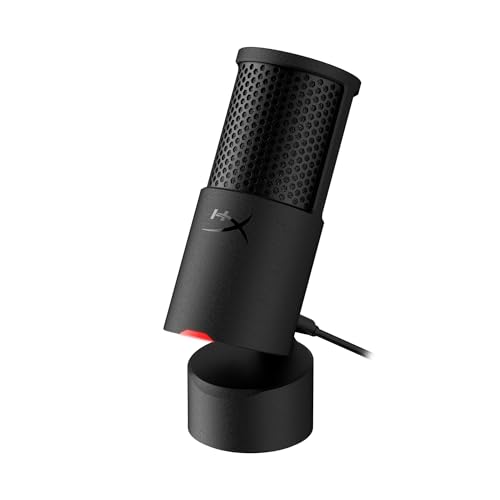
2. HyperX SoloCast 2
USB · condenser · tap-to-mute
Small USB microphone for chat and streaming, with tap-to-mute. You connect it with a single cable and it works without drivers.

3. Razer Seiren V3 Mini
USB · supercardioid · very small
A very small microphone, one of the most purchased in this roundup. It mainly picks up the voice from the front and has tap-to-mute.
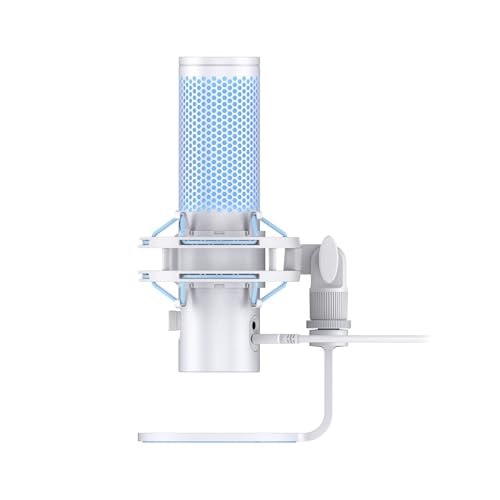
4. HyperX QuadCast 2
USB-C · 4 polar patterns · tap-to-mute
A microphone for streaming and chat with four pickup patterns. You mute it by tapping the top of the body, and the shock mount dampens bumps on the desk.

5. Logitech Blue Yeti
USB · 4 polar patterns · headphone output
A classic among USB microphones, with four polar patterns and a gain control on the body. It has its own headphone output.
PS5 settings: input, output, and the swapped audio trap
You set up your mic in Settings > Sound > Microphone. That's where you pick the input device and the mic level. Audio input and output are separate settings, and you'll find the output under Sound > Audio Output.
Here's the most common trap. The console can automatically switch the output to a newly connected audio device. Picture plugging in a mic right before you join a party chat. Your friends hear you fine, but you can't hear anyone, because the sound went to the mic instead of your headphones or TV. That's exactly what the PS5 did after a popular USB mic was connected: it recognized it as a mic, but switched the output to it as well.
So once the mic is connected, run a quick check:
- go to Sound > Microphone and select the USB mic as the input device,
- go to Sound > Audio Output and set the headset or TV back as the output,
- set the mic level and check how you sound before you join the chat.
If the mic isn't detected, try a USB-A port on the back of the console. Some mics need full power, and the rear port is often more reliable in that case than the front one.
When you stream, remember that the stream mic is set separately. In the Share settings you pick the mic for broadcasting, so a good voice in chat doesn't mean your viewers will hear it.
Fun fact: The PS5 also recognized a wired USB headset with its own sound card and let you turn on 7.1 surround sound on it.
When the mic in the controller is enough
The DualSense controller has a built-in mic and a 3.5 mm headphone jack. For ordinary chat with friends during a game, that's often all you need: plug your headphones into the controller and talk, with nothing extra to buy.
The mute button on the controller turns the mic on and off, so you can quickly go quiet when someone walks into the room. The console also has an option that mutes the mic automatically when a chat or broadcast starts, so you don't leave an open mic by mistake.
A separate mic makes sense when you stream or record and want a cleaner, fuller voice. If you only talk with your squad, start with the controller and buy a mic only if someone has trouble understanding you.
Common questions about a mic for the PS5
Does every USB mic work with the PS5?
No. Most USB mics work, but the console has requirements for the USB audio class. Look for clear info about PS5 compatibility or driver-free operation.
Where do I select a USB mic on the PS5?
In Settings > Sound > Microphone. There you pick the input device and set the mic level. If you stream, select the broadcast mic separately in the Share settings.
Will an XLR mic work with the PS5?
Yes, but only through a USB audio interface. The interface sends sound to the console over a USB cable, and your friends in party chat hear it as a mic. Without a go-between like that, an XLR mic won't work with the console.
Why did the sound in my headphones disappear after I connected a mic?
The console may have automatically switched the audio output to the newly connected device. Go to Sound > Audio Output and set the headset or TV back as the output. Leave the mic in Sound > Microphone unchanged.
Is the mic in the DualSense enough for in-game chat?
For ordinary chat, yes. A controller and headphones plugged into the 3.5 mm jack are enough. A separate mic is mostly useful for streaming and recording, where better voice quality matters.
Sources
- PlayStation Support: Voice chat troubleshooting - manufacturer page (playstation.com)
- PlayStation Support: How to change audio settings on PS5 consoles - manufacturer page (playstation.com)
- PlayStation: DualSense wireless controller - manufacturer page (playstation.com)
- TweakTown: PlayStation 5 supports external USB mics, USB headsets with soundcards - industry article (tweaktown.com)
- Speakers in Code: Best microphone for gaming PS5 - industry article (speakersincode.com)
- Evetech Evezone: USB mic for PS5 quick setup - industry article (evezone.evetech.co.za)
- HP Tech Takes: HyperX SoloCast 2 review - industry article (hp.com)
- Elgato: Wave Neo USB microphone (specifications) - industry article (elgato.com)
- Elgato: How to connect your console to Wave XLR Pro - industry article (elgato.com)

Leave a comment
This site is protected by hCaptcha and the hCaptcha Privacy Policy and Terms of Service apply.