

As an Amazon Associate I earn from qualifying purchases.
Quick answer: our top pick is UGREEN USB-C Bluetooth 5.3 adapter for PS5 (USB-C · Bluetooth 5.3 · aptX).
Best Bluetooth adapter for PS5? A USB transmitter with aptX and matching headphones
One USB transmitter with aptX Low Latency or aptX Adaptive, plus headphones that support the same codec. That's all you need to play on a PS5 or PS5 Pro without a cable. You plug the transmitter into the console, and your headphones connect to it, not to the PS5 itself.
Both sides have to support the codec. If your headphones don't support aptX, the transmitter's main advantage won't kick in. Laptop Mag notes that quality varies a lot between models, and recommends an adapter with aptX Low Latency as a good pick.
Keep two things in mind. Sony doesn't guarantee compatibility with third-party adapters, and some transmitters carry audio only, with no microphone. Newer features like Auracast only work with compatible headphones.
Why the PS5 doesn't pair with headphones on its own, and what a transmitter changes
According to Sony, the console won't pair with regular Bluetooth headphones. It won't even find them. The reason is possible latency and the limited bandwidth of Bluetooth.
A transmitter gets around the problem. The PS5 sees it as an ordinary USB audio device, and the transmitter then connects to your headphones. Sony confirms that an external adapter lets you connect regular headphones, but it doesn't promise that every model will work.
What Hi-Fi points out that Sony and Microsoft prefer 2.4 GHz/5 GHz wireless audio, because it has clearly better latency and bandwidth than Bluetooth. If your headset comes with its own dongle, that will usually work better. A Bluetooth transmitter makes sense when you want to play with headphones you already own.
Fun fact: Sony's INZONE gaming headsets don't use Bluetooth. They connect to the console through their own USB dongle or with a cable.
The port matters. You plug a USB-A transmitter into the front or the back of the console. A USB-C version takes up the front port, which you may need for a drive or other accessories.
Before you buy anything, check three things in the product description or on the transmitter itself:
- port: USB-A or USB-C, and whether it's free where you want to use it,
- codec: aptX Low Latency or Adaptive, and whether your headphones support it,
- microphone: whether the manufacturer mentions microphone support, or only audio.
The products below are USB Bluetooth transmitters that their manufacturers describe as made for the PS5.
If you're buying just one: choose a transmitter with aptX Low Latency or Adaptive that your headphones also support.
Bluetooth adapters for PS5 we recommend

1. UGREEN USB-C Bluetooth 5.3 adapter for PS5
USB-C · Bluetooth 5.3 · aptX
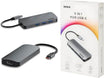
UGREEN USB-C transmitter with Bluetooth 5.3 and aptX codecs, listed by the manufacturer for PS5 and Switch. One of the most popular in this group.

2. Avantree DG80-Gaming USB Bluetooth transmitter
USB · aptX Adaptive · audio only for headphones
A small USB transmitter that the manufacturer lists for the PS5. The console sees it as a sound card, and your headphones connect to it over Bluetooth. The aptX Adaptive codec works if your headphones support it too.
See Avantree DG80-Gaming USB Bluetooth transmitter on Amazon →

3. UGREEN USB-C Bluetooth 6.0 adapter for PS5
USB-C · Bluetooth 6.0 · LE Audio · aptX Adaptive
A newer version with Bluetooth 6.0 and LE Audio. The manufacturer states that it transmits audio only and doesn't support the headphone mic. It makes sense with headphones that support LE Audio or aptX Adaptive.
Step-by-step setup and sound settings
It only takes a minute. Here is the order:
- Step 1: plug the transmitter into a free USB-A port on the front or back of the console. The USB-C version goes into the front port.
- Step 2: hold down the pairing button on the transmitter.
- Step 3: put your headphones in pairing mode and wait until they connect.
- Step 4: go to Settings > Sound > Audio Output and select the transmitter. The console may switch to the newly connected device on its own, but it's best to confirm.
- Step 5: in Settings > Sound > 3D Audio (Headphones), create your own profile or pick one of the 5 presets.
You don't need headphones with a special 3D Audio label. Push Square explains that the console's Tempest engine calculates the effect, not the headphones, so regular stereo headphones can play it too.
If you hear nothing in your headphones, check the audio output settings first. The console may not switch to the new transmitter on its own.
Mic and latency: what the transmitter doesn't do and when a cable is better
On PlayStation, audio input and output are two separate settings. You pick the output in the sound settings, and the microphone in the Control Center, on the Mic card, from the list of devices with a mic. So just connecting your headphones to the transmitter doesn't mean their mic will work.
Some dongles are audio-only. The maker of one of the newer Bluetooth 6.0 models states plainly that it doesn't support a microphone. In that case you're left with the mic in the DualSense or a separate microphone for chat.
You can't rule out latency either. What Hi-Fi points out that it hurts voice chat, because talking to friends in a game gets difficult. The aptX Low Latency codec can help, but Bluetooth gives no guarantee of lag-free audio.
Fun fact: the DualSense controller itself connects to the PS5 over Bluetooth and already uses up part of the bandwidth. Sony explains that extra Bluetooth audio could add small delays.
If fast reaction or easy chat matters most, consider a cable. You plug headphones with a 3.5 mm jack straight into the port on the DualSense controller, with no adapter. According to Sony, this works without any adapter.
Frequently asked questions about a Bluetooth adapter for PS5
Does the PS5 connect to Bluetooth headphones without an adapter?
No. Sony states that the console won't pair with regular Bluetooth headphones and won't even find them. You need an external USB transmitter or headphones with their own dongle.
Does a Bluetooth adapter also work with the PS5 Pro?
The principle is the same: the console sees the transmitter as a USB audio device. Sony doesn't guarantee compatibility for external adapters, though, so before you buy, check the manufacturer's description to see whether it lists the PS5 and which ports it uses.
USB-C or USB-A adapter for PS5?
You plug USB-A into the front or back of the console, so you don't block an important port. USB-C takes the front port, which you may need for a drive or accessories. Choose the one that fits your free port.
Does the headset mic work through a Bluetooth adapter?
It depends on the model. Some transmitters pass only audio, and the manufacturer says outright that they don't support a microphone. You also select the mic separately in the Control Center, on the Mic card.
Does 3D Audio work with regular headphones?
Yes. The console's Tempest engine calculates the effect, so regular stereo headphones can play it too. You set it up in Settings > Sound > 3D Audio (Headphones).
Sources
- Sony Support: Can I connect my regular Sony Bluetooth headphones to my PS5? - manufacturer page (sony.ie)
- PlayStation Support: How to change audio settings on PS5 consoles - manufacturer page (playstation.com)
- PlayStation Support: How to set up 3D audio on PS5 consoles - manufacturer page (playstation.com)
- What Hi-Fi?: Why your Bluetooth headphones won't work with your PS5 or Xbox Series X - industry article (whathifi.com)
- Android Central: Buy this UGREEN USB adapter for your PS5 - industry article (androidcentral.com)
- Laptop Mag: How to connect Bluetooth headphones to PS5 - industry article (laptopmag.com)
- Push Square: How to enable 3D audio on PS5 - industry article (pushsquare.com)
- UGREEN UK: Bluetooth 6.0 adapter for PS5 / PS5 Pro (product page) - industry article (uk.ugreen.com)

Leave a comment
This site is protected by hCaptcha and the hCaptcha Privacy Policy and Terms of Service apply.