

As an Amazon Associate I earn from qualifying purchases.
Quick answer: our top pick is UGREEN USB4 dock for 2 monitors (USB4 · 2 monitors without drivers · SD and microSD).
Best docking station for MacBook Pro 14 M6? Quick answer
If you want to connect two monitors, choose a dock whose manufacturer explicitly states two independent displays on a MacBook. The number of HDMI ports on the casing alone guarantees nothing, as we explain below.
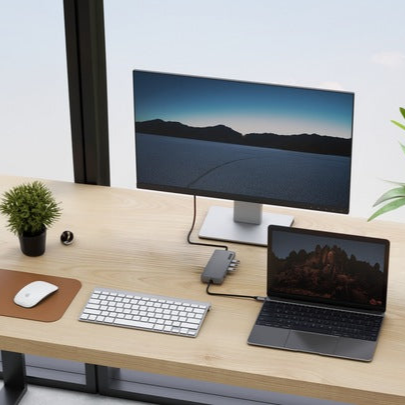
The MacBook Pro 14 with M6 already has HDMI and an SDXC card reader, so you don't need a dock for those two things. It makes sense when you are short on ports, want to connect a network cable, or want to charge your laptop and drive your monitors with a single cable.
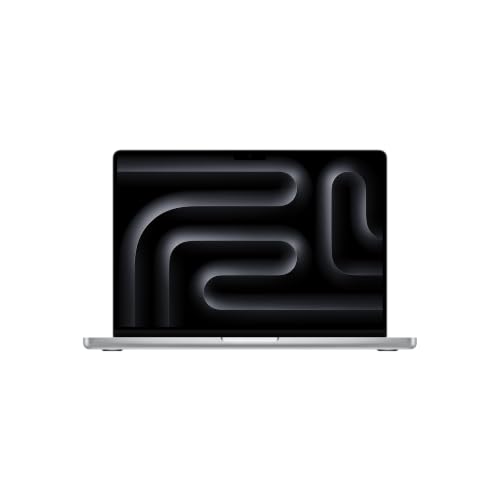
The laptop has three USB-C Thunderbolt 4 / USB 4 ports at up to 40 Gb/s, HDMI, an SDXC card reader, a headphone jack, and MagSafe 3. It supports up to two external monitors: two at up to 6K 60 Hz or 4K 165 Hz, or one at up to 8K 60 Hz, 5K 120 Hz, or 4K 240 Hz. You can connect the monitors via Thunderbolt and HDMI in any configuration.
Fun fact: according to MacRumors, its predecessor, the M5, supported two 4K monitors at up to 144 Hz. The M6 raises that limit to 165 Hz.


Why a cheap hub with two HDMI ports will show the same image twice
macOS does not support MST. It is a DisplayPort feature that lets you send several independent images over one cable. That is why a cheap USB-C hub with two HDMI ports, connected to the Mac with a single cable, shows the same image on both monitors (this is how Plugable describes it).
In practice: look at the manufacturer's description, not at the number of ports. Look for a statement about two independent monitors on a MacBook. It is a plus if the dock does this without a driver, because then you don't need to install any extra software.
If you want to save money, two monitors also work without any dock. You connect one to the laptop's HDMI port and the other with a USB-C to HDMI or USB-C to DisplayPort cable. A dock then gives you convenience: one cable to the laptop instead of a separate one for each screen.

How many watts a dock should deliver
Apple lists 60 W as the recommended minimum for charging. Fast charging starts at 96 W (USB PD).
At 85 W the laptop charges normally, just more slowly than at 96 W. For desk work that is usually enough. If you often charge your laptop on the go, between meetings, aim for 96 W or more.
The power ratings come from the manufacturers: Anker 85 W, UGREEN Revodok Max 208 85 W, Plugable 100 W, SATECHI 100 W. Keep in mind that these are claims from the product descriptions, not our own measurements.
Below we have gathered docks and hubs that we selected based on what the manufacturer states about Mac support, charging power, and monitor support. For each one, pay attention to the limitations listed in the description.
Recommended docks for MacBook Pro 14 M6
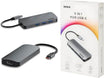
1. UGREEN USB4 dock for 2 monitors
USB4 · 2 monitors without drivers · SD and microSD
A USB4 dock that, according to UGREEN, drives two independent monitors on a MacBook with no driver, up to 4K 120 Hz each. It also has 2.5 Gb/s Ethernet, 10 Gb/s USB ports and an SD and microSD reader.

2. UGREEN Revodok Max 208 Thunderbolt 4
3 x Thunderbolt 4 · 85 W charging · Ethernet
Three 40 Gb/s Thunderbolt 4 ports, three 10 Gb/s USB-A ports and Gigabit Ethernet. It charges the laptop at up to 85 W, above the recommended minimum but short of fast charging. For base M chips the maker lists one 4K monitor, so buy it for the ports, not for two screens.
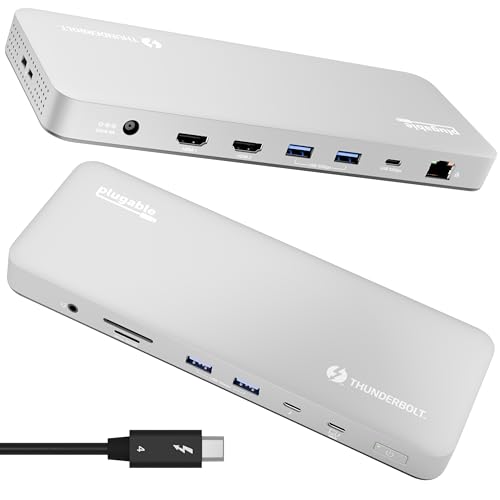
3. Plugable Thunderbolt 4 Dock (TBT-UDM)
Thunderbolt 4 · 2 x HDMI 4K 60 Hz · 100 W charging
A 13-port Thunderbolt 4 dock with up to 100 W charging. Plugable lists two 4K 60 Hz HDMI displays with no driver on all M4 and M5 Macs. The listing does not name the M6 yet.

4. SATECHI Thunderbolt 4 Dock
3 x Thunderbolt 4 · 100 W charging · DisplayLink HDMI
An aluminium dock with three 40 Gb/s Thunderbolt 4 ports and 100 W charging, enough for fast charging. Satechi names the MacBook Air and Pro with M4 and M5. Its two HDMI ports need the DisplayLink driver.

5. Anker 7-in-1 USB-C hub
HDMI 4K 60 Hz · 85 W charging · best seller
The best-selling hub in this list. One 4K 60 Hz HDMI port, USB ports and a card reader. The laptop already has HDMI and SD, so you buy it mainly for USB-A. It charges the laptop at up to 85 W.
What to look for when buying
Start by deciding how many monitors you actually want to connect to the dock. The rest of the decision follows from that answer.
- Thunderbolt 4 or regular USB-C: a Thunderbolt 4 dock uses the full 40 Gb/s that the M6 ports provide. A USB-C hub is simpler and offers fewer options, so treat it as a port extender, not as a dock for two screens.
- Two monitors: according to the manufacturer, UGREEN USB4 supports two independent monitors on a MacBook without a driver. UGREEN excludes only the base M1, M2 and M3. Plugable lists two HDMI 4K 60 Hz displays without a driver on Macs with M4 and M5, but the description does not mention M6 yet.
- Revodok Max 208: the manufacturer lists one 4K 60 Hz monitor with base M chips, and the description is older and does not mention M6. Don't count on two screens here, buy it for the ports.
- Occupied laptop ports: PULWTOP has two USB-C plugs, so it takes up two of the MacBook's three ports. The description lists M4, M5 and M6, and the power adapter is sold separately.
- Power adapter: check the description to see whether one is included. A dock rated at 96 W but sold without a power adapter requires buying one separately.
Thunderbolt 5 docks are a separate matter. The Thunderbolt 4 ports in the M6 run at 40 Gb/s, and a Thunderbolt 5 dock won't make them faster. Paying extra for the newer standard won't give you anything on this laptop.
Fun fact: Thunderbolt 5 at up to 120 Gb/s is available only on the more expensive MacBooks with M5 Pro and M5 Max. The M6 has three Thunderbolt 4 ports (Apple data).
Frequently asked questions
How many monitors does the MacBook Pro 14 M6 support?
Up to two external monitors. These can be two displays at up to 6K 60 Hz or 4K 165 Hz. You can also connect one at up to 8K 60 Hz, 5K 120 Hz or 4K 240 Hz. You connect them via Thunderbolt and HDMI in any combination.
Will a cheap hub with two HDMI ports give two different pictures on the MacBook Pro M6?
Usually not. macOS does not support MST, so a hub connected with a single cable shows the same picture on both screens. Choose a dock whose manufacturer states two independent monitors on a Mac.
Will a docking station charge the MacBook Pro 14 M6 quickly?
Fast charging requires 96 W. A dock with 85 W will charge the laptop normally, but more slowly. Apple's recommended minimum is 60 W.
Does a Thunderbolt 5 dock make sense with the M6?
There is no reason to pay extra. The Thunderbolt 4 ports in the M6 run at 40 Gb/s, and a Thunderbolt 5 dock won't make them faster. It is better to choose a dock based on two-monitor support and charging power.
Do you even need a dock for two monitors?
No. You connect one monitor to the laptop's HDMI port and the other with a USB-C to HDMI or USB-C to DisplayPort cable. A dock is more convenient because you connect the laptop with a single cable, but it is not required.
See also
- Which charger for Apple MacBook Pro 14 M6 - an adapter for the desk and travel
- Best monitor for MacBook Pro M6 - two 4K screens at 165 Hz and USB-C charging
- Best docking station for MacBook Pro OLED - Thunderbolt 5 and up to four displays
- Best docking station for MacBook Air M5 - two monitors without the traps
- Best docking station for Mac mini M4 - front ports and an M.2 SSD
Sources
- Apple: MacBook Pro technical specifications - manufacturer page (apple.com)
- MacRumors: Apple announces new 14-inch MacBook Pro with M6 chip - industry article (macrumors.com)
- Notebookcheck: MacBook Pro with Apple M6 - industry article (notebookcheck.net)
- Plugable: external display support on Apple M chips - industry article (kb.plugable.com)
- Macworld: M5 Pro and Max MacBooks and multi-monitor support - industry article (macworld.com)

Leave a comment
This site is protected by hCaptcha and the hCaptcha Privacy Policy and Terms of Service apply.