

As an Amazon Associate I earn from qualifying purchases.
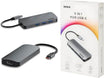
Quick answer: our top pick is UGREEN Revodok Pro 106 10Gbps USB-C Hub (HDMI 4K 60 Hz · USB 10 Gb/s · PD 100 W).
Best USB-C hub for iPad Pro M5? One with HDMI and pass-through charging
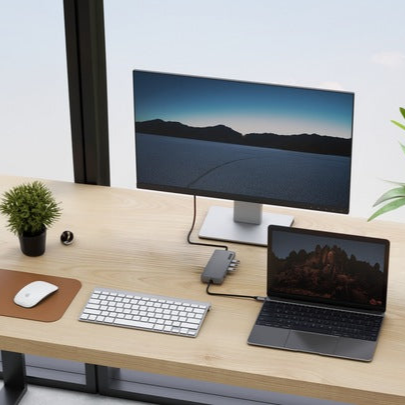
The best choice is a USB-C hub with an HDMI output and pass-through charging (PD). It lets you connect a monitor, a flash drive, and a keyboard while the iPad keeps charging from a single charger.
For ordinary desk work, a hub with 4K 60 Hz HDMI and a few USB ports is enough. If you use fast drives, look for 10 Gb/s USB ports. We cover the rest of the details below.
What a single port gives you and what the monitor limits are
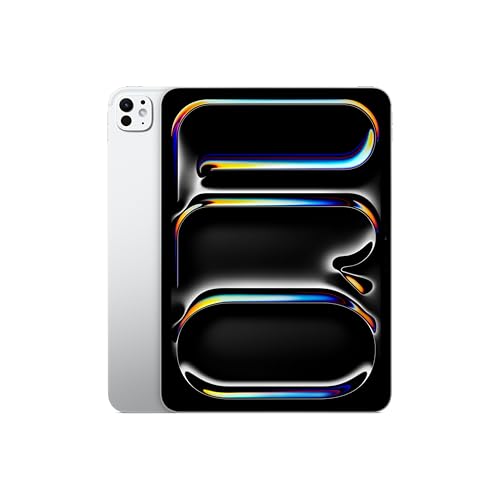
The iPad Pro M5 (released in October 2025) has one Thunderbolt / USB 4 port with charging and DisplayPort. According to Apple's specifications, it supports Thunderbolt 3 at up to 40 Gb/s and USB 3 at up to 10 Gb/s.
Creative Bloq rightly points out that a single port is the main limitation. That is why you usually need a hub for a monitor and accessories.
Apple states that the iPad supports one external display, up to 6K 60 Hz or 4K 120 Hz. According to MacRumors, the external display works with Adaptive Sync. You can't connect two monitors at the same time.
Then there is the matter of power. A hub with pass-through charging lets you charge the iPad while you work on a large screen.
Fun fact: The iPad Pro M5 supports a display up to 6K, but through a regular hub with HDMI you will get 4K 60 Hz at most.
Below we have collected USB-C hubs that we selected based on whether they offer 4K 60 Hz HDMI, pass-through charging, and ports for basic accessories.
USB-C hubs for iPad Pro M5 we recommend

1. UGREEN Revodok Pro 106 10Gbps USB-C Hub
HDMI 4K 60 Hz · USB 10 Gb/s · PD 100 W
Small hub with HDMI 4K 60 Hz, USB 10 Gb/s ports and pass-through charging up to 100 W. A fast external drive won't slow down through the hub like it would with 5 Gb/s ports.

2. UGREEN 5-in-1 USB-C Hub with 4K HDMI
HDMI 4K · 3 x USB-A · PD 100 W
Simple hub with HDMI, three USB-A ports and pass-through charging. Enough for a flash drive, a keyboard and a monitor.

3. Satechi 4-in-1 USB-C Mobile Hub
HDMI 4K · short · PD 100 W
Short hub that plugs straight into the iPad's port, no cable. Handy with a keyboard case.
What to look for in a hub
The first thing to check is HDMI. Hubs with HDMI 2.0 deliver up to 4K 60 Hz, which is more than enough for documents, video calls, and movies. Check the listing to see whether the manufacturer states 60 Hz, because some cheaper models top out at 30 Hz, and scrolling looks noticeably worse.
The second thing is the USB ports. For a flash drive and a keyboard, regular USB-A ports are enough. If you copy large files to an external drive, choose a hub with 10 Gb/s ports, so the drive isn't slowed down by a 5 Gb/s port.
The third thing is the pass-through charging power. The higher the PD value, the less the hub takes from the charger. Connect a good-quality charger to it, preferably the original from the manufacturer or a decent replacement with adequate power, and use a USB-C cable rated for charging.
- HDMI: 4K 60 Hz, meaning HDMI 2.0.
- USB: 10 Gb/s ports for drives, USB-A for a flash drive and keyboard.
- PD: pass-through charging, so the iPad doesn't drain while connected to a monitor.
- Card reader: handy if you transfer photos from a camera.
Also consider how convenient the hub is to use. A hub on a short cable sits stably on the desk, while a model that plugs directly into the port is handy for travel, especially with a keyboard case.
When a hub is not enough
An HDMI hub stops being enough when you have a 6K monitor. For that resolution you need a USB-C or Thunderbolt monitor, and a connection over HDMI 2.0 is out.
The same goes for when you want to get more out of fast accessories. The iPad's port supports Thunderbolt up to 40 Gb/s, so with very fast drives or an extensive setup, a Thunderbolt dock will work better than a simple 10 Gb/s hub.
A hub also won't help if you're planning a second monitor. The iPad supports only one external display, and no adapter will change that.
Fun fact: a monitor connected without pass-through charging limits the iPad's charging, as Gizmodo reports.
Frequently asked questions about hubs for iPad Pro M5
Which USB-C hub for iPad Pro M5?
Choose a hub with HDMI 4K 60 Hz, PD pass-through charging, and USB ports that match your accessories. For fast drives, 10 Gb/s ports are better. For a flash drive and a keyboard, a simpler model is enough.
Does the iPad Pro M5 support two monitors?
No. According to Apple, the iPad supports one external monitor, up to 6K 60 Hz or 4K 120 Hz. A hub won't change this limit.
Can you charge the iPad Pro M5 through a hub?
Yes, if the hub has pass-through charging (PD). The iPad then charges from the charger connected to the hub while also handling the monitor and accessories. Without power pass-through, a connected monitor limits charging.
Which monitor can I connect to the iPad Pro M5 over HDMI?
Any monitor with an HDMI input, though a hub with HDMI 2.0 will give you up to 4K 60 Hz. The iPad itself supports up to 6K 60 Hz or 4K 120 Hz, but 6K requires a USB-C or Thunderbolt monitor.
Does the iPad Pro M5 have Thunderbolt?
Yes. It has one Thunderbolt / USB 4 port with charging and DisplayPort. According to Apple's specifications, it supports Thunderbolt 3 up to 40 Gb/s and USB 3 up to 10 Gb/s.
Sources
- Apple: iPad Pro (M5) technical specifications - manufacturer page (support.apple.com)
- MacRumors: iPad Pro (M5) review - industry article (macrumors.com)
- Creative Bloq: iPad Pro M5 tested - industry article (creativebloq.com)
- Gizmodo: iPad Pro M5 review - industry article (gizmodo.com)
- T3: Apple iPad Pro M5 review - industry article (t3.com)

Leave a comment
This site is protected by hCaptcha and the hCaptcha Privacy Policy and Terms of Service apply.