

As an Amazon Associate I earn from qualifying purchases.
Quick answer: our top pick is ASUS TUF Gaming VG27AQ3A (27 inch · 1440p · IPS · HDMI).
Best monitor for Nintendo Switch 2? Ideally 27 inches, 1440p and HDMI
If you want to play Switch 2 on a monitor, choose a 27-inch 1440p model with an HDMI input. Such a monitor can get 120 Hz out of the dock in games that support it, and the image is noticeably sharper than at Full HD.
A 4K monitor will work too, but with Switch 2 you will only get 60 Hz on it. Below we explain why, and how to choose between the two.
What the Switch 2 outputs in the dock
According to RTINGS, the console in the dock outputs 4K at 60 Hz, or 1080p and 1440p at up to 120 Hz. That is all you need to know when choosing a monitor: 4K and 120 Hz at the same time is not possible.
Do you need HDMI 2.1? No. RTINGS notes that the full HDMI 2.1 bandwidth is not required. A monitor without HDMI 2.1 will still handle 4K 60 Hz and 1440p 120 Hz from the console, so a regular HDMI input is enough.
Keep in mind that you will only get 120 Hz in games that support that mode. The rest will run at whatever the game's developer intended.
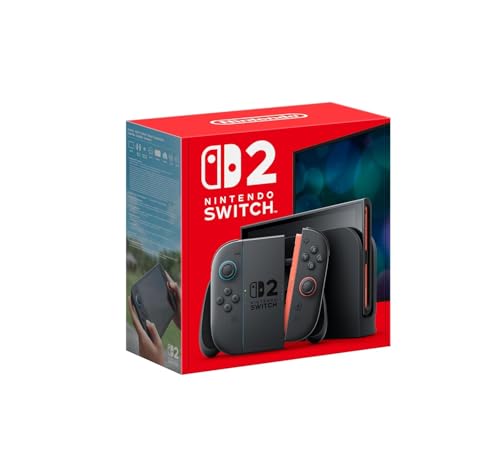
We cover the Switch 2 dock in a separate article.
We picked products by a single criterion: monitors with HDMI, 27 inches or 4K, matching what the Switch 2 actually outputs in the dock.
The best monitors for Nintendo Switch 2 we recommend

1. ASUS TUF Gaming VG27AQ3A
27 inch · 1440p · IPS · HDMI
An ASUS 1440p monitor with an IPS panel and HDMI inputs. It suits Switch 2 in 1440p mode at 120 Hz.

2. Dell 27 Plus S2725QS
27 inch · 4K · HDMI · speakers
A 4K Dell monitor with HDMI and built-in speakers. Switch 2 will send it 4K at 60 Hz, and the speakers are enough for gaming without headphones.
1440p or 4K: smoothness vs. sharpness
1440p is the choice for those who value smoothness. Switch 2 outputs up to 120 Hz to such a monitor, so in games that support this mode, motion is noticeably smoother than at 60 Hz.
4K gives a sharper image, but only at 60 Hz. It makes sense if you mostly play games where detail matters more than speed, or if you also use the monitor with a computer and will take advantage of the resolution there.
On 27 inches, the difference in sharpness between 1440p and 4K is visible, but 1440p already delivers a clear, polished image. That makes it the safer compromise for most people.
If you also connect a computer to the monitor, 1440p with a high refresh rate will work well there too, since you'll make use of the rest of its capabilities on your PC.
VRR, audio, and connecting through the dock
VRR, or variable refresh rate, worked only in handheld mode at launch. That is what Nintendo stated, according to Notebookcheck. Later, KitGuru described a system update that added a VRR output toggle in TV mode, and The Shortcut writes that the Switch 2 dock supports VRR in hardware.
In practice: install the console updates and check in the settings whether the VRR option is turned on. The monitor, of course, must support it too.
Fun fact: At launch, Nintendo announced VRR only in handheld mode, and the VRR toggle in TV mode only arrived with a later update.
Audio is hit or miss, because monitors don't always have speakers. If yours doesn't, you can send the sound through headphones plugged into the console, otherwise you'll be left without sound. If you want to play without headphones, choose a model with built-in speakers and check this in the monitor's description.
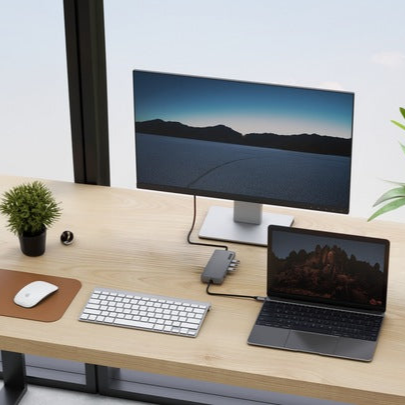
Connecting is simple: an HDMI cable runs from the dock to an HDMI input on the monitor, and the dock must have its own power adapter plugged in. If there is no picture, Nintendo advises checking the HDMI cable, the dock's power adapter, and the input selected on the monitor.
Frequently asked questions about a monitor for Switch 2
Which monitor for Nintendo Switch 2?
The most sensible choice is a 27-inch 1440p monitor with an HDMI input. It gives you 120 Hz in games that support it. A 4K monitor will give a sharper image, but with Switch 2 only at 60 Hz.
Does Switch 2 support 4K 120 Hz?
No. According to RTINGS, in the dock the console outputs 4K at 60 Hz or 1080p and 1440p up to 120 Hz. If you want 120 Hz, choose 1440p or Full HD.
Does a monitor for Switch 2 need HDMI 2.1?
No, it doesn't. RTINGS points out that a monitor without HDMI 2.1 will handle 4K 60 Hz and 1440p 120 Hz from the console. A regular HDMI input is enough.
Does Switch 2 have VRR in TV mode?
Yes, after an update. At launch, VRR worked only in handheld mode, but a system update added a VRR output toggle in TV mode. The dock supports VRR in hardware, and the monitor must support it too.
How do I connect Switch 2 to a monitor?
Connect the dock to an input on the monitor with an HDMI cable and plug the power adapter into the dock. If there is no picture, check the HDMI cable, the dock's power adapter, and the selected monitor input. If the monitor has no speakers, use headphones plugged into the console.
Sources
- Nintendo Support: No video output to TV in TV Mode on Nintendo Switch 2 - manufacturer page (en-americas-support.nintendo.com)
- RTINGS: The best monitors for Nintendo Switch 2 - industry article (rtings.com)
- Notebookcheck: Switch 2 specs don't include VRR in docked mode - industry article (notebookcheck.net)
- KitGuru: Switch 2 update brings variable refresh rate to docked mode - industry article (kitguru.net)
- The Shortcut: Switch 2 dock supports VRR after all - industry article (theshortcut.com)


Leave a comment
This site is protected by hCaptcha and the hCaptcha Privacy Policy and Terms of Service apply.